
Visual guide
Tune, screen by screen
A complete tour of the Tune 1.0 interface, in pictures. From your library to zones, from streaming to metadata: hover the numbered dots to understand each screen.
Getting started
Tour the interface in one minute.
The interface at a glance
Tune is built around a sidebar that gathers all your music — library, streaming services, radio, sources and shortcuts — and a player bar that is always there at the bottom of the screen. Home is made of widgets you pick and arrange yourself.
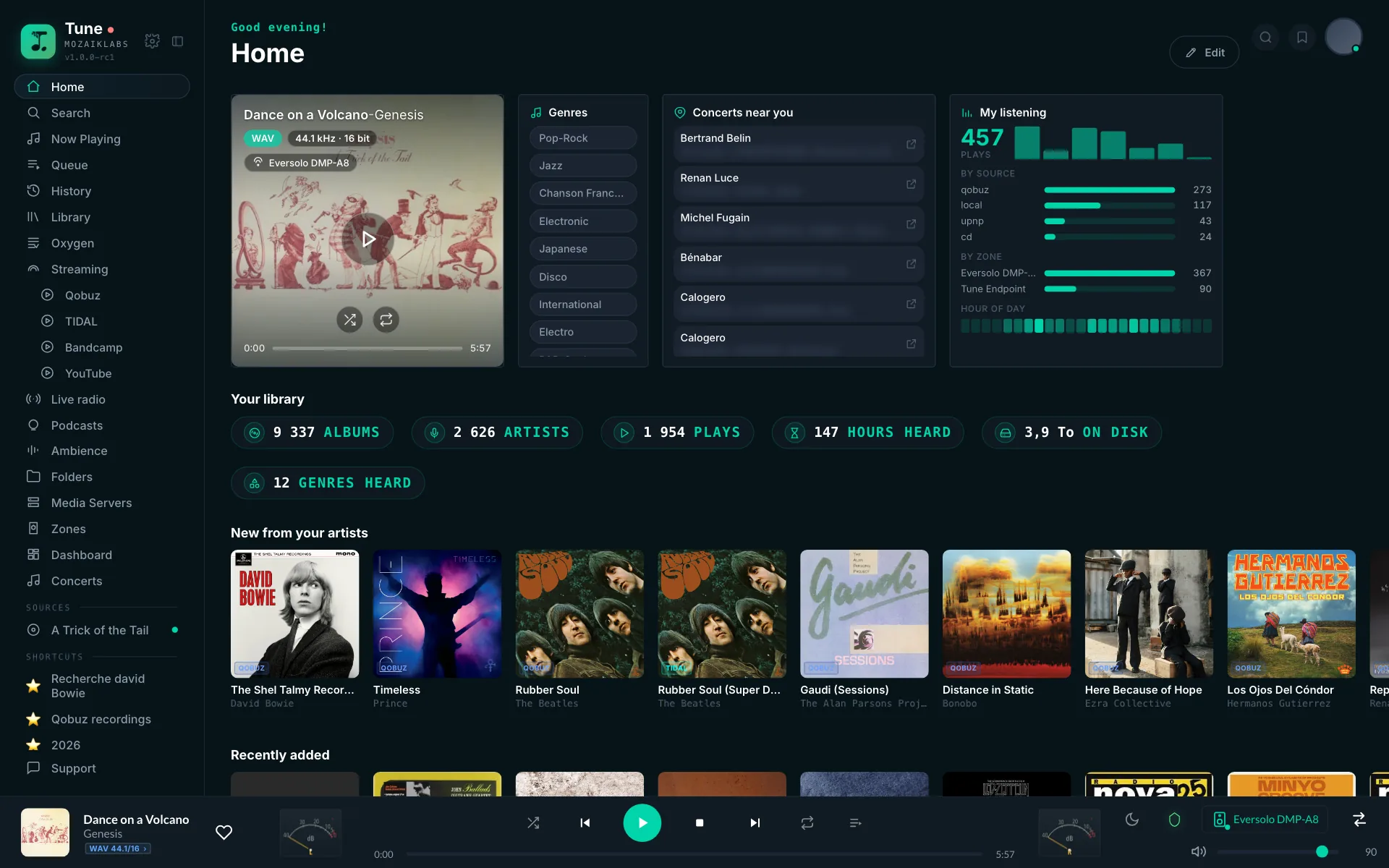
- 1
Sidebar
Home, Search, Now Playing, Queue, History, Library, Oxygen, Streaming, Live radio, Podcasts… Its order is set in Settings.
- 2
Streaming services
Your connected services (here Qobuz, TIDAL, Bandcamp, YouTube) are listed under “Streaming”.
- 3
Shortcuts
The screens you pinned, one click away. “All shortcuts” lists them all.
- 4
Settings
The gear opens Settings. Next to it, a button collapses the sidebar.
- 5
Search, shortcut and account
Search, “Create a shortcut to this screen” and the account menu, at the top of every screen.
- 6
Edit Home
Add, remove or reorder the Home widgets.
- 7
First row
What is playing on your zones, with format, sample rate and output zone.
- 8
My listening
Your listening at a glance: trend, split by source and by zone, hour of day.
- 9
Your library
Albums, artists, plays, hours heard, space on disk and genres heard.
- 10
Player bar
Shuffle, previous, play/pause, next, repeat and queue, on the active zone.
- 11
Zone selector
Choose the device the music plays on; the button next to it transfers playback to another zone.
Explore your music
Library, artists, genres, search, Oxygen and Ambience.
The library
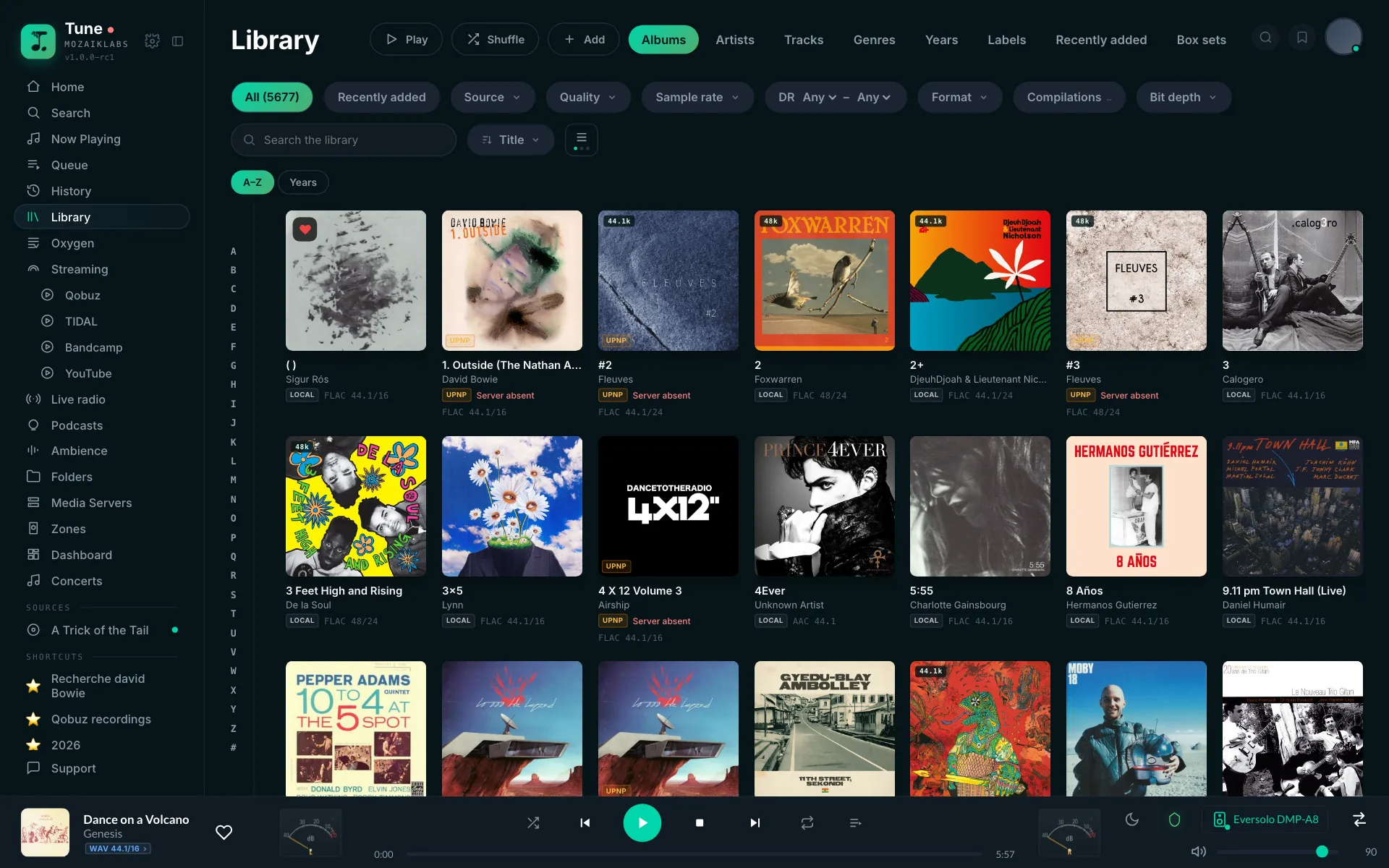
All your local music — and your UPnP servers’ — in a single album grid. Filter by source, quality, sample rate, format, bit depth or dynamic range, sort, and jump to a letter with the alphabetical index.
- 1
Tabs
Albums, Artists, Tracks, Genres, Years, Labels, Recently added and Box sets.
- 2
Play, Shuffle, Add
Play the whole selection, in order or shuffled, or add music folders.
- 3
Filters
Recently added, Source, Quality, Sample rate, Format, Compilations, Bit depth.
- 4
Dynamic range
Set the minimum and maximum dynamic range (DR) of the albums shown.
- 5
Search the library
Filters the grid as you type.
- 6
Sort and view
Sort by title, artist or year, as a grid or a list.
- 7
Alphabetical index
Jump straight to a letter in large libraries.
- 8
Album tile
On hover: play, favorite, edit, tags and more actions. A click opens the album page.
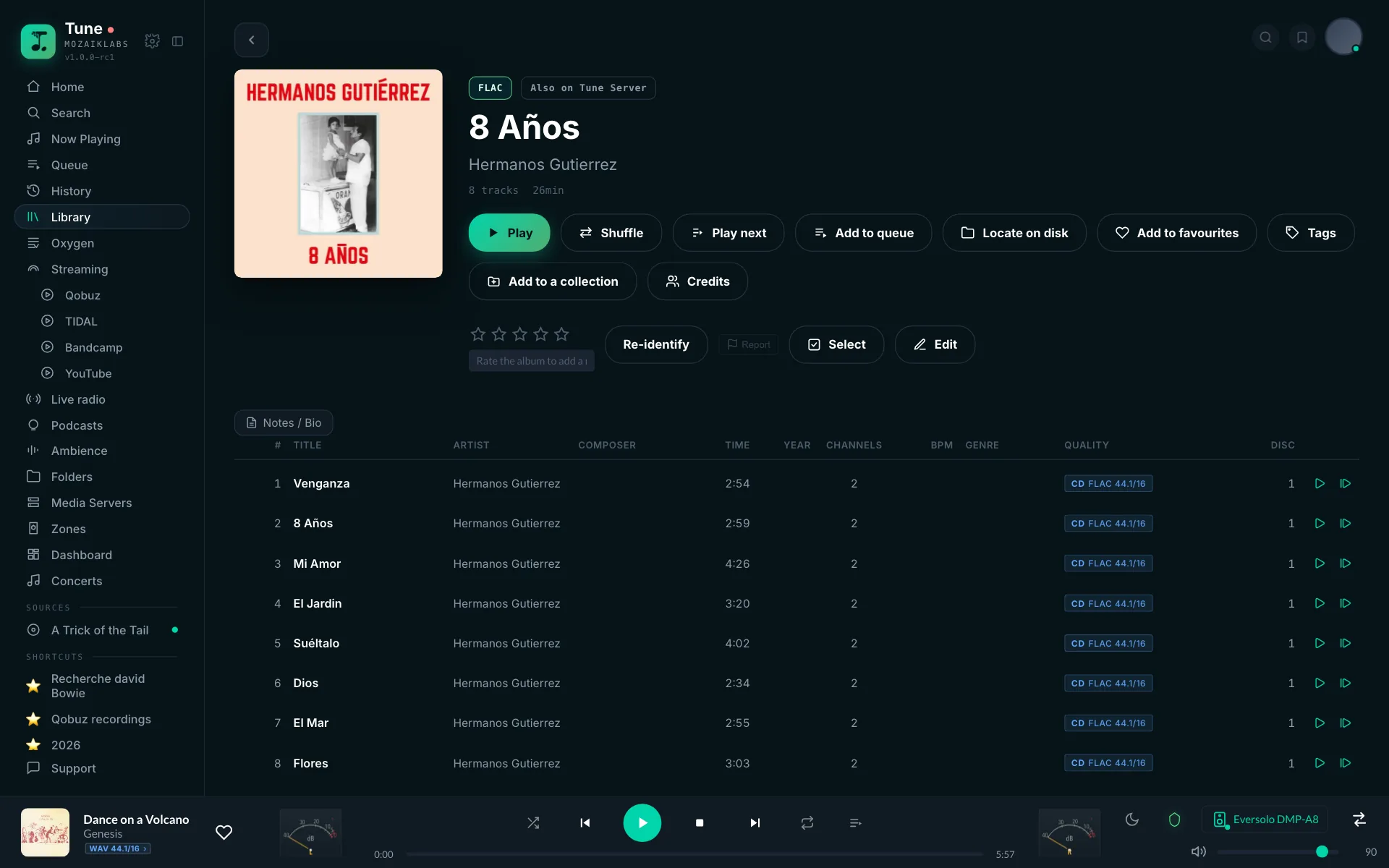
The album page: playback actions, tags, rating, credits and track-by-track technical details.
- 1
Cover
The album cover, with its format and source.
- 2
Playback
Play, Shuffle, Play next, Add to queue.
- 3
Locate on disk
Find where the album’s files are stored.
- 4
Favorites
Add the album to your favorites.
- 5
Tags, collection, credits
File the album under your tags, in a collection, or read its credits.
- 6
Rating
Rate the album from one to five stars to add a note.
- 7
Re-identify, Edit
Fix the album’s identification or edit its information.
- 8
Notes / Bio
Your notes and the artist’s biography.
- 9
Quality
Format, sample rate and bit depth of each track.
- 10
Track actions
Play, play from here, play next, add to queue or to a playlist, tags.
Artists
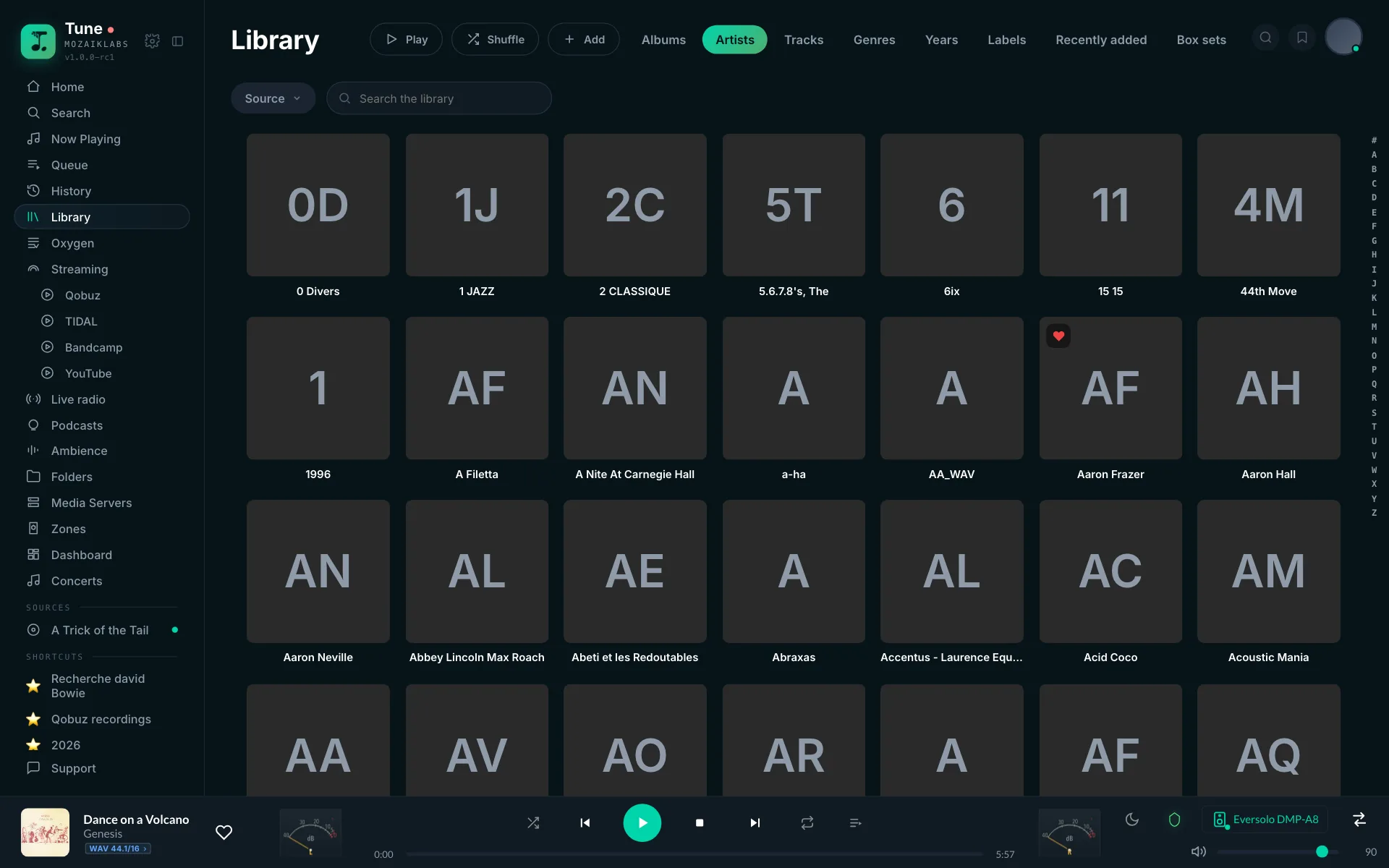
The Artists tab groups your library by performer. Filter by source, search for a name or jump to a letter with the index.
- 1
Artists tab
The same library, sorted by artist.
- 2
Source
Show a single source only.
- 3
Artist tile
A click opens the artist page and discography.
- 4
Index
Jump straight to a letter.
Genres
The Genres tab lists every genre in your library with its album count. The genre tree, which files sub-genres under their family, is managed in Metadata.
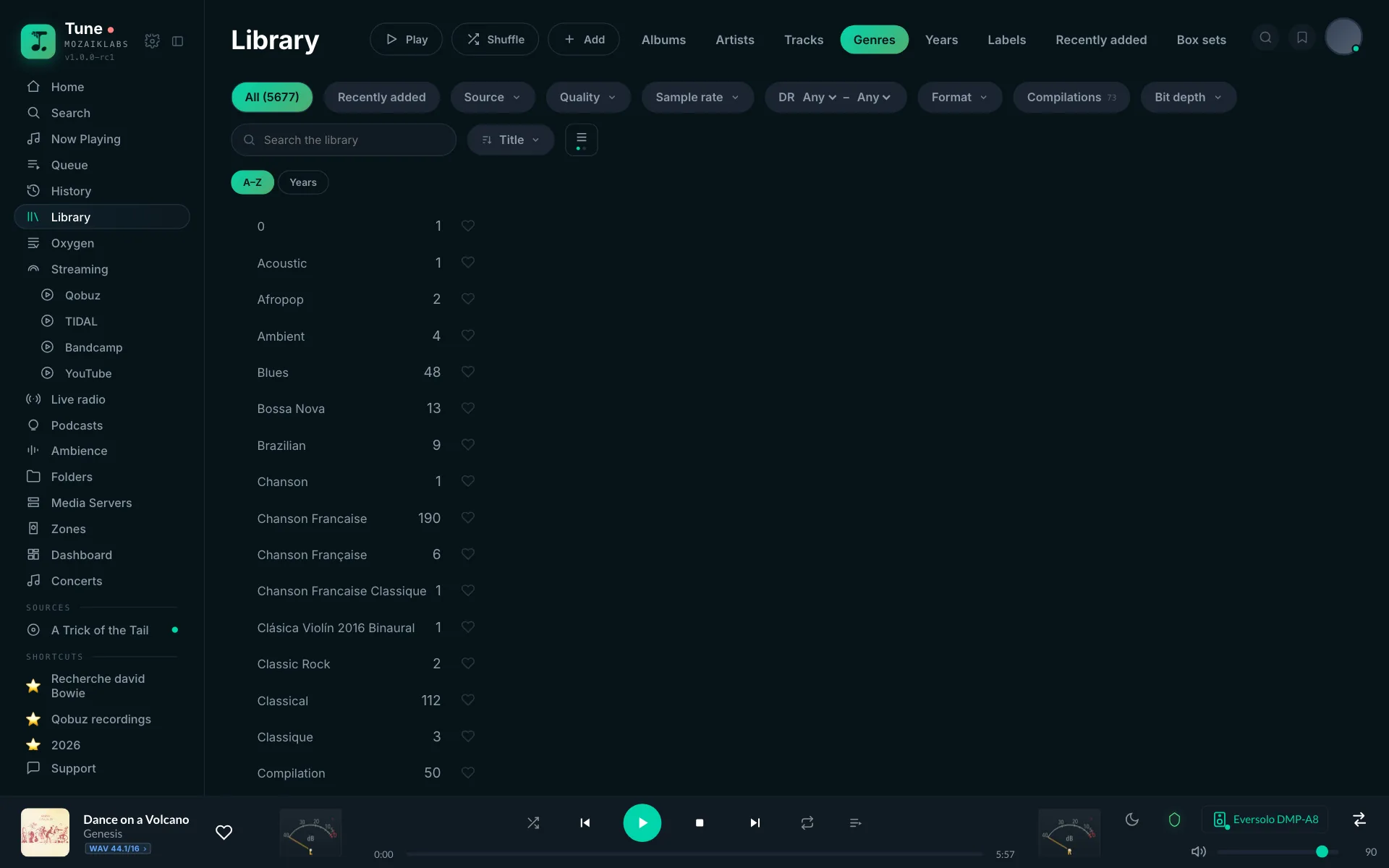
- 1
Genres tab
Browse the library by genre.
- 2
Genre
The genre name and its album count; a click shows them.
- 3
Favorite
Add a genre to your favorites.
Search
One bar to search for an album, a track or an artist. Before you even type, Search suggests your most played artists and your recent additions.
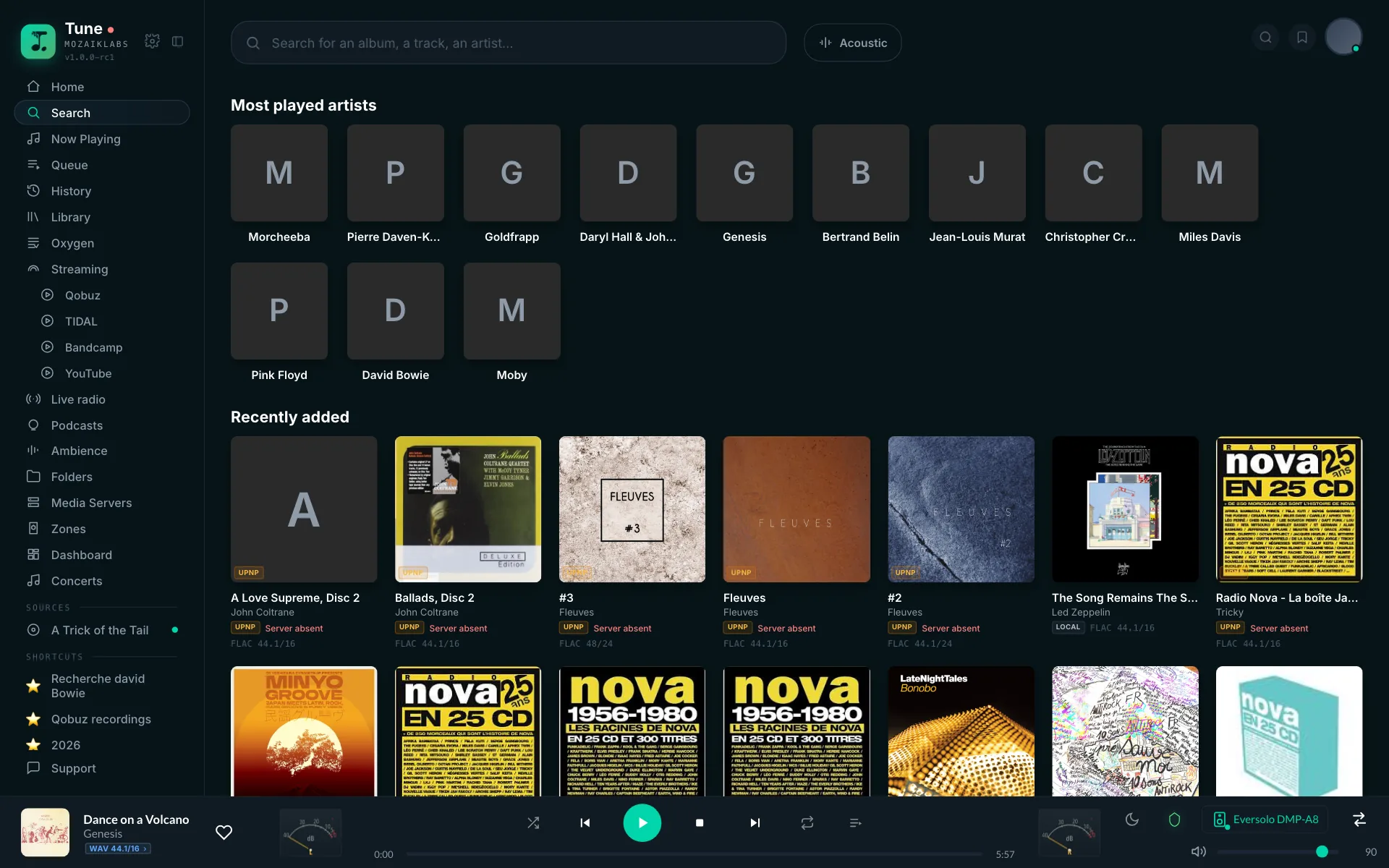
- 1
Search bar
Search for an album, a track, an artist…
- 2
Acoustic
Switch to acoustic search: describe a sound rather than a name.
- 3
Most played artists
Your favorite artists, one click away.
- 4
Recently added
The latest albums added to the library.
Oxygen
Oxygen browses your whole collection by facets: genres and other tags on the left, results on the right, as a detailed list, a grid or album cards.
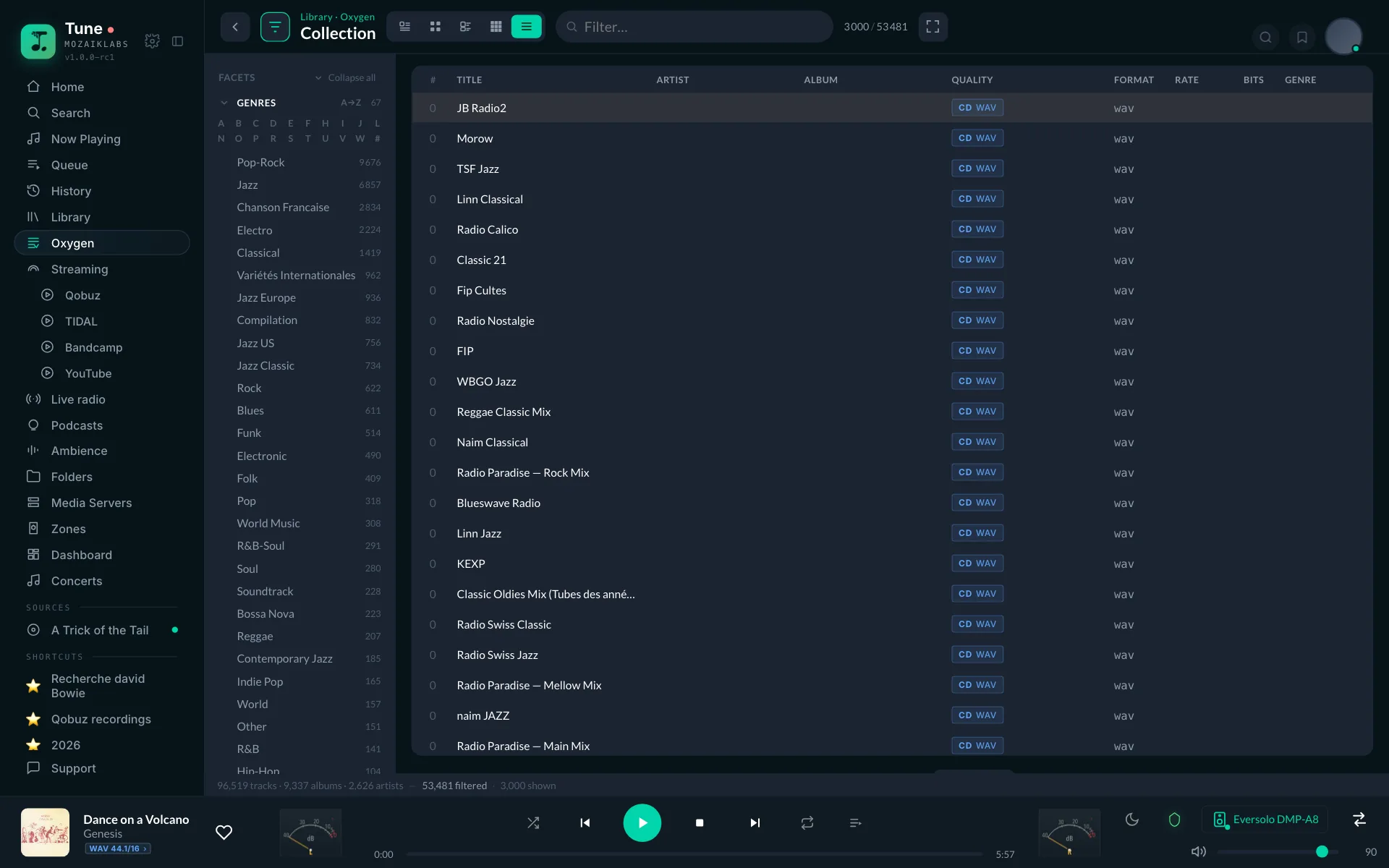
- 1
Facets
Click a value (here a genre) to filter the collection; the track count is shown.
- 2
Facet index
Jump to a letter in a long list of values.
- 3
View
Albums, Grid, Album cards or Details.
- 4
Filter
Filters the results as you type.
- 5
Results
Title, artist, album, quality, format… for each matching track.
- 6
Load more
Results arrive page by page.
Ambience
Ambience is an acoustic search: describe a mood and Tune finds the tracks that sound alike. It searches by sound, not by genre tag.
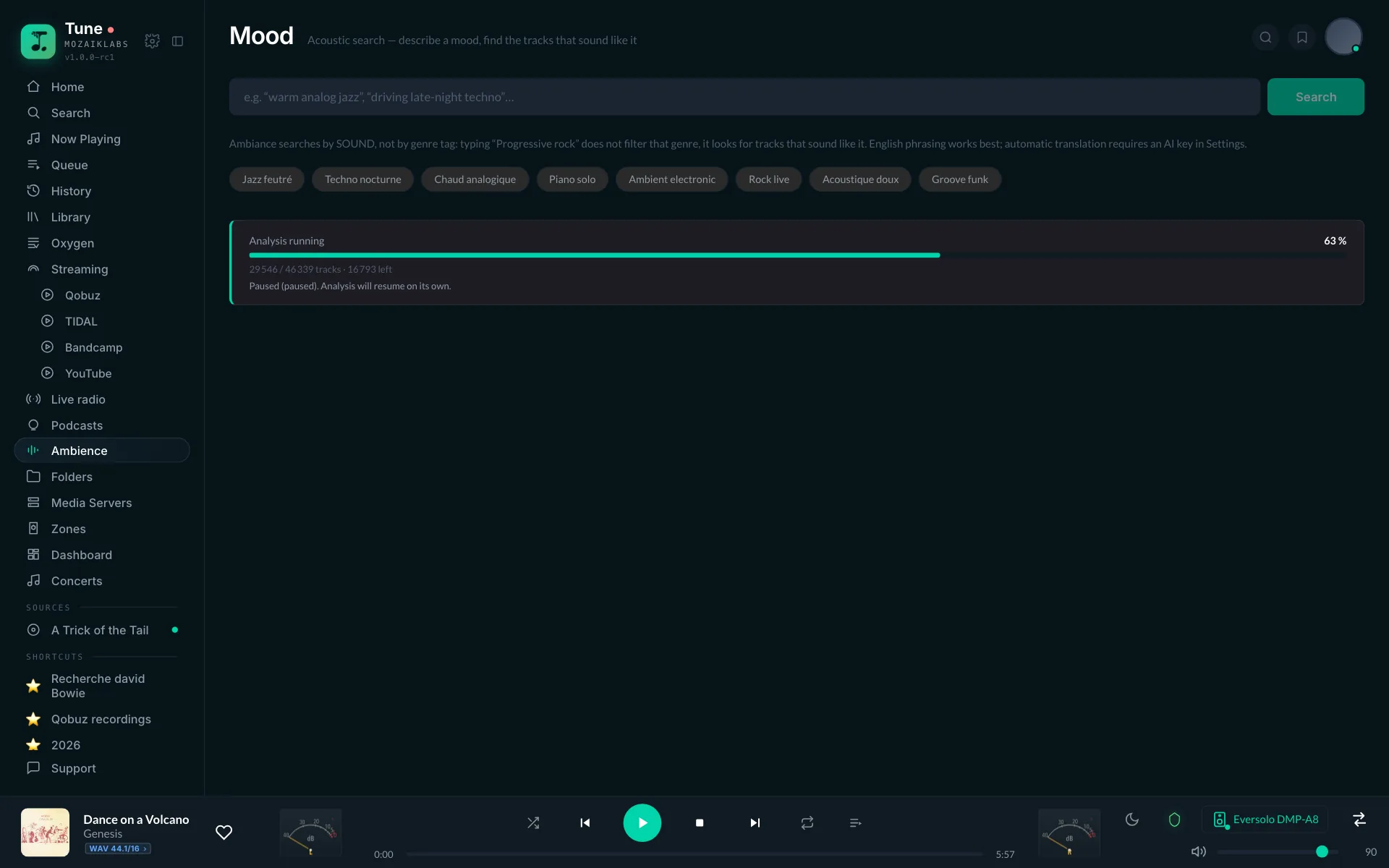
- 1
Describe a mood
For example “warm analog jazz”. English phrasing gives the best results.
- 2
Examples
Ready-made moods to start from.
- 3
Analysis in progress
Ambience relies on the acoustic analysis of the library, whose progress is shown here.
Listen
Now Playing, queue, history, zones and alarms.
Now Playing
The current track, full size: cover, title, quality, visualizer and what comes next in the queue. Playback controls stay in the bottom bar.
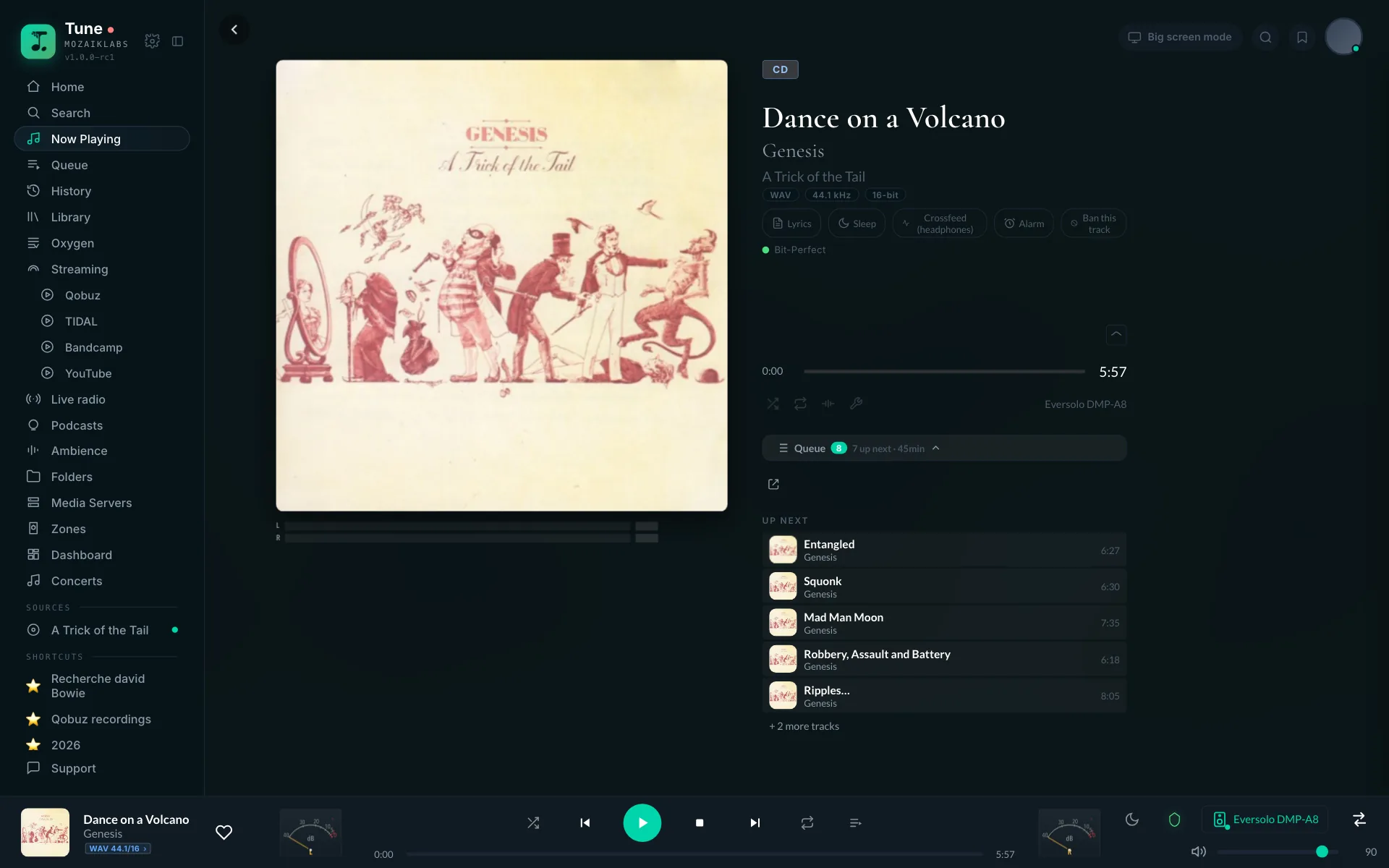
- 1
Cover
The cover of the current track.
- 2
Title and quality
Title, artist, album, source and stream format.
- 3
Track shortcuts
Lyrics, Sleep, Crossfeed (headphones), Alarm, Ban this track.
- 4
Bit-Perfect
Shows that the stream reaches the device untouched, with no processing.
- 5
Peak meter
The signal levels; their look is chosen in Settings.
- 6
Queue
The tracks up next and the time remaining.
- 7
Big screen mode
A full-screen view, for a TV or a tablet.
Queue
The current track and everything after it. Reorder, remove, start a track from the queue or extend it with similar tracks.
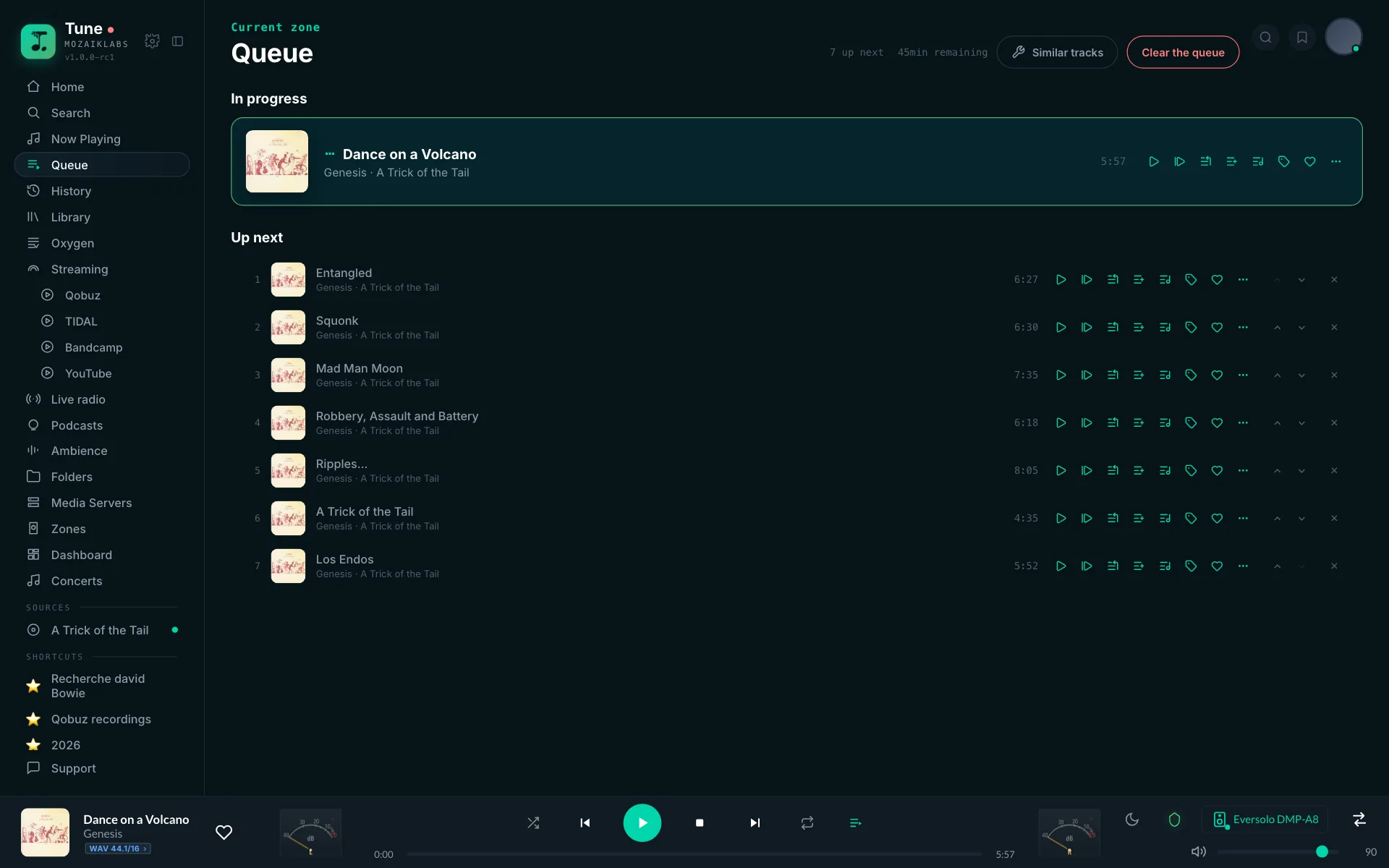
- 1
In progress
The track playing right now.
- 2
Actions
Play, play from here, play next, add to queue or to a playlist, tags, favorites.
- 3
Up next
The next tracks, in order.
- 4
Move up, move down, remove
Rearrange the queue track by track.
- 5
Similar tracks
Extend the queue with related tracks.
- 6
Clear the queue
Start again from an empty queue.
History
Everything you listened to, in order, with artist, duration and source. Play a track again or start over from a playlist you heard.
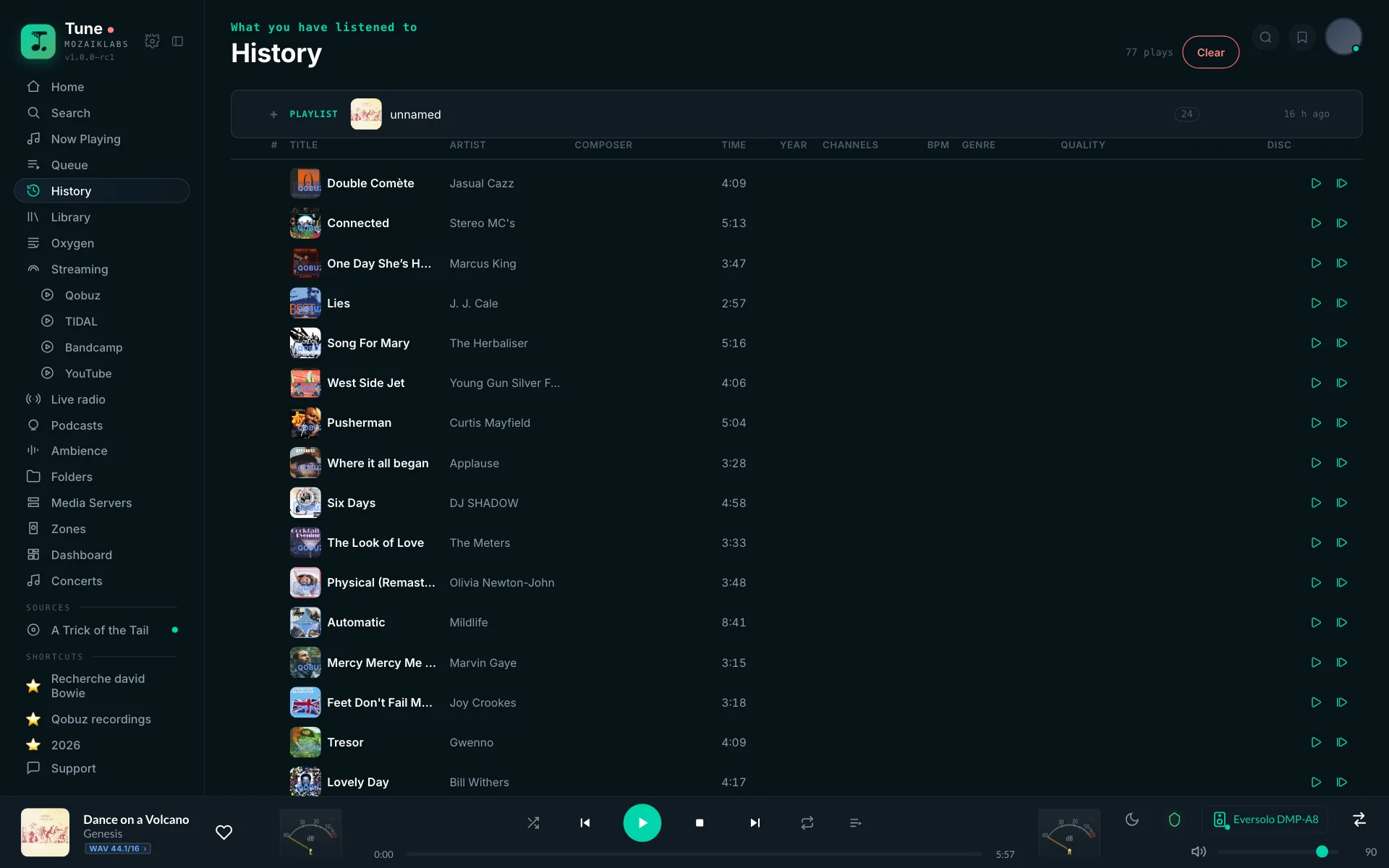
- 1
What was played
A playlist, album or radio you played heads its series.
- 2
Track
Each track you heard, with its source.
- 3
Artist
A click on the artist opens their page.
- 4
Actions
Play, play from here, play next…
- 5
Clear
Erase the history.
Zones
Every output device — DLNA/UPnP, AirPlay, Sonos, the browser itself… — becomes a zone. Set each zone’s volume, open what it is playing, pair two zones in stereo or build multiroom groups.
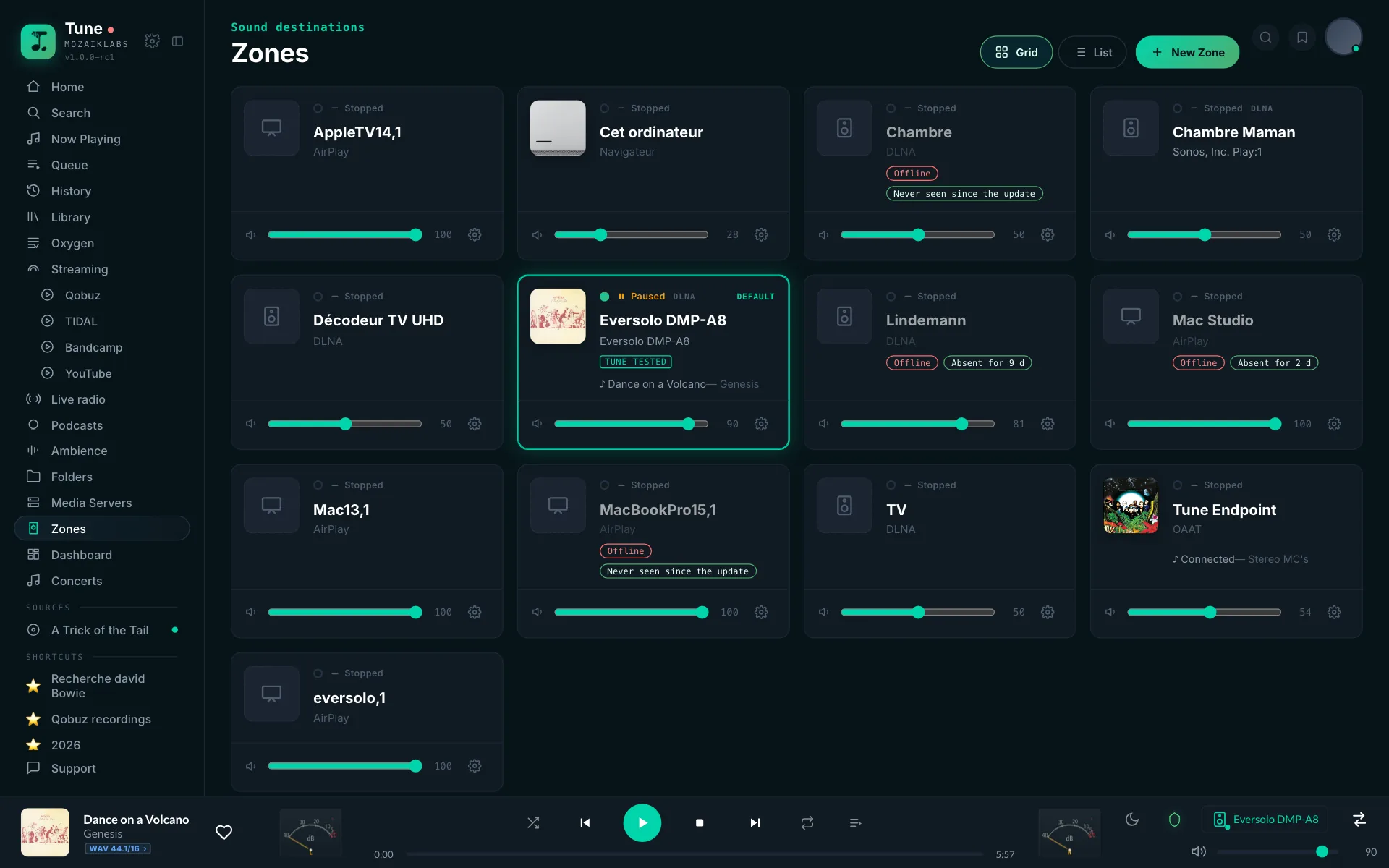
- 1
Grid or list
Two ways to show your zones.
- 2
New Zone
Add a zone by hand.
- 3
Playing zone
The active zone shows what it plays; a click opens its Now Playing.
- 4
Volume
Each zone’s volume, straight from the grid.
- 5
Zone actions
Settings and actions specific to each zone.
Apple CarPlay
Tune Remote (TestFlight, build 38 or later) shows up on the car screen: Recent, Playlists, Radios and Favorites, then the Now Playing screen. The sound comes out of the iPhone, on the “This phone” zone. There is no search in the car (an Apple rule). Away from home, remote access through Tune Bridge is required. Full guide: tune.audio/docs/carplay.
Alarms & Schedules
Schedule an alarm to start the music automatically, on the zone of your choice.
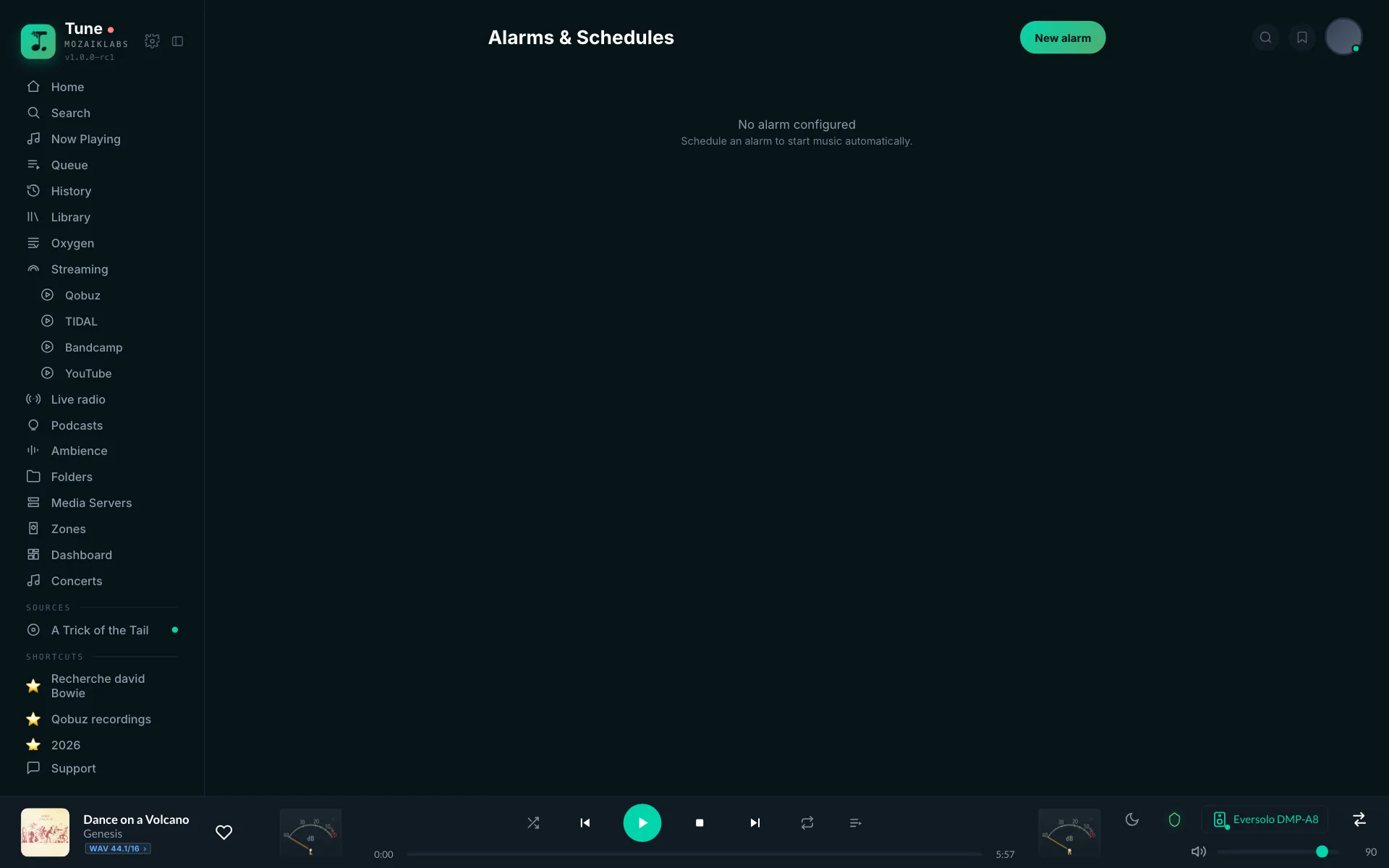
- 1
New alarm
Create an alarm or a schedule.
Organize
Playlists, collections, favorites, tags and shortcuts.
Playlists
The Playlist Manager brings together your local playlists and your services’ playlists. It also offers Smart Playlists, a playlist generator, transfers between services, snapshots and sync.
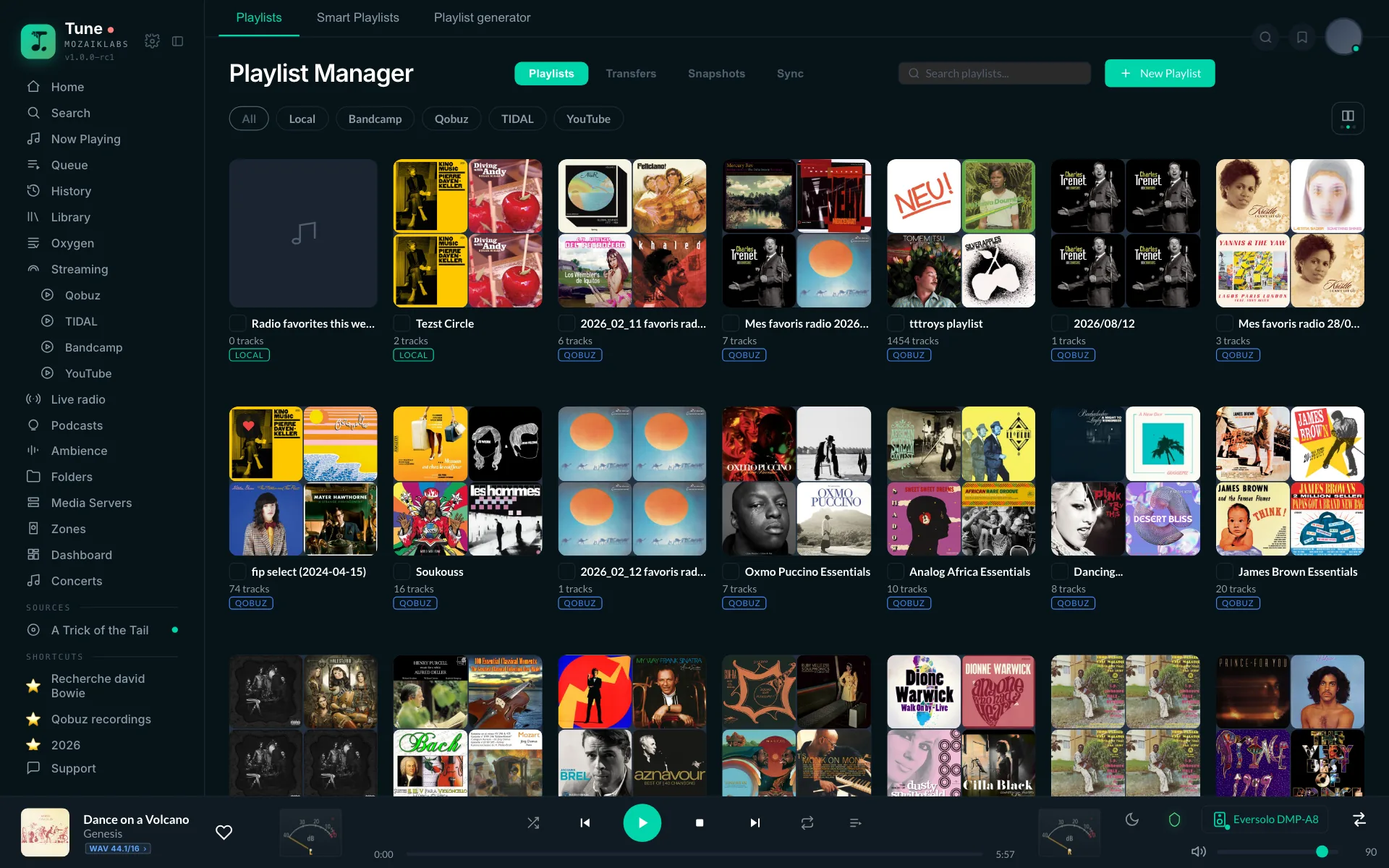
- 1
Three views
Playlists, Smart Playlists and Playlist generator.
- 2
Tools
Playlists, Transfers, Snapshots, Sync.
- 3
Filter by source
All, Local, Bandcamp, Qobuz, TIDAL, YouTube.
- 4
New playlist
Create a playlist.
- 5
Playlist tile
Hover to play; a click opens the playlist.
- 6
Share, import, delete
Each playlist’s own actions.
Collections
Collections group albums around a theme. Smart Collections fill themselves from your rules; Shelves arrange the library like a record shop’s bins.
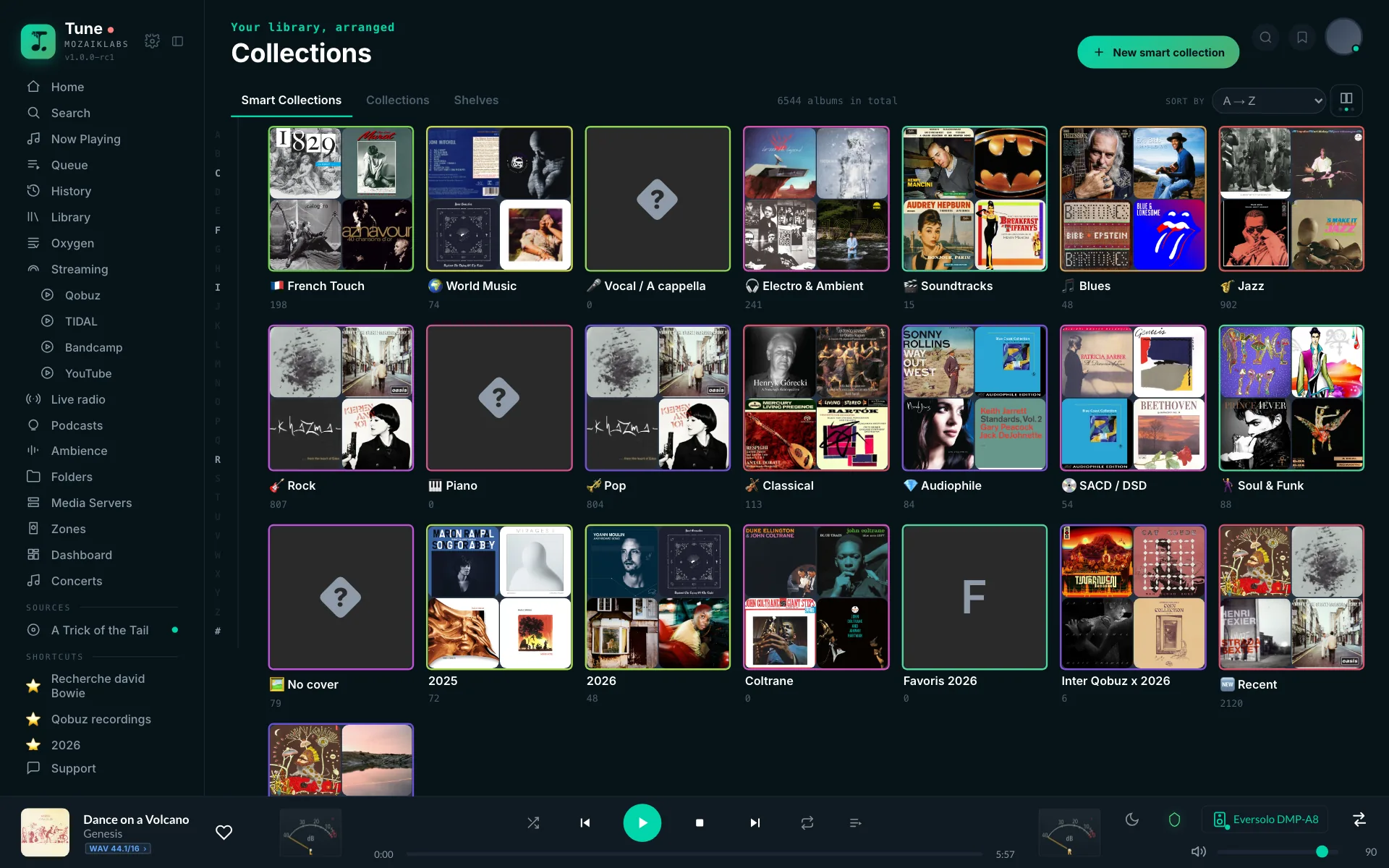
- 1
Tabs
Smart Collections, Collections, Shelves.
- 2
New smart collection
Define rules; the collection keeps itself up to date.
- 3
Collection
Its name and album count; a click opens it.
- 4
Sort
Change the order of collections.
Favorites
Everything you marked with a heart — local or streaming — in one place, sorted by type.
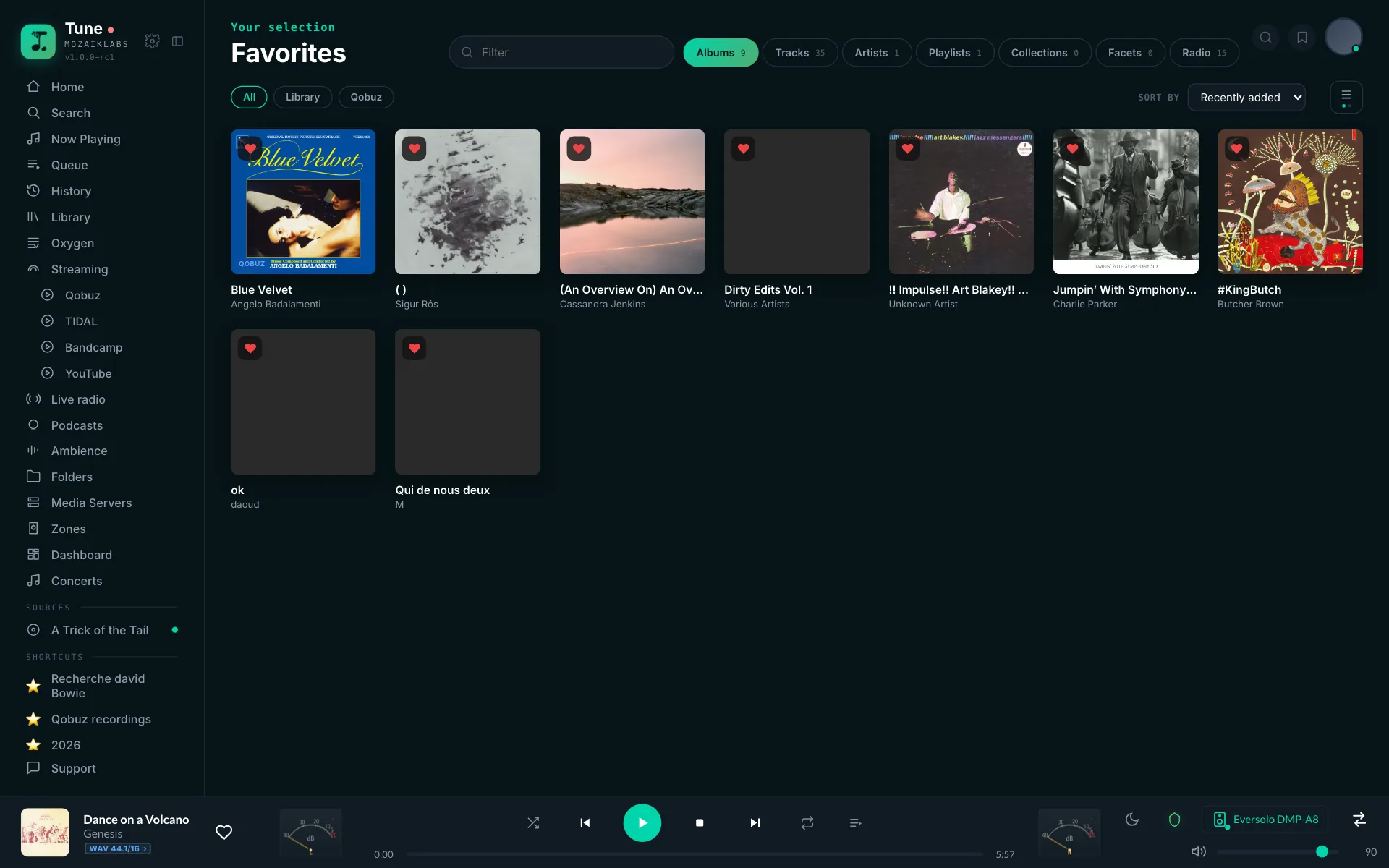
- 1
Types
Albums, Tracks, Artists, Playlists, Collections, Facets, Radio.
- 2
Source
All, Library or a single service.
- 3
Filter
Find a favorite by name.
- 4
Favorite
A click opens it; the heart removes it from favorites.
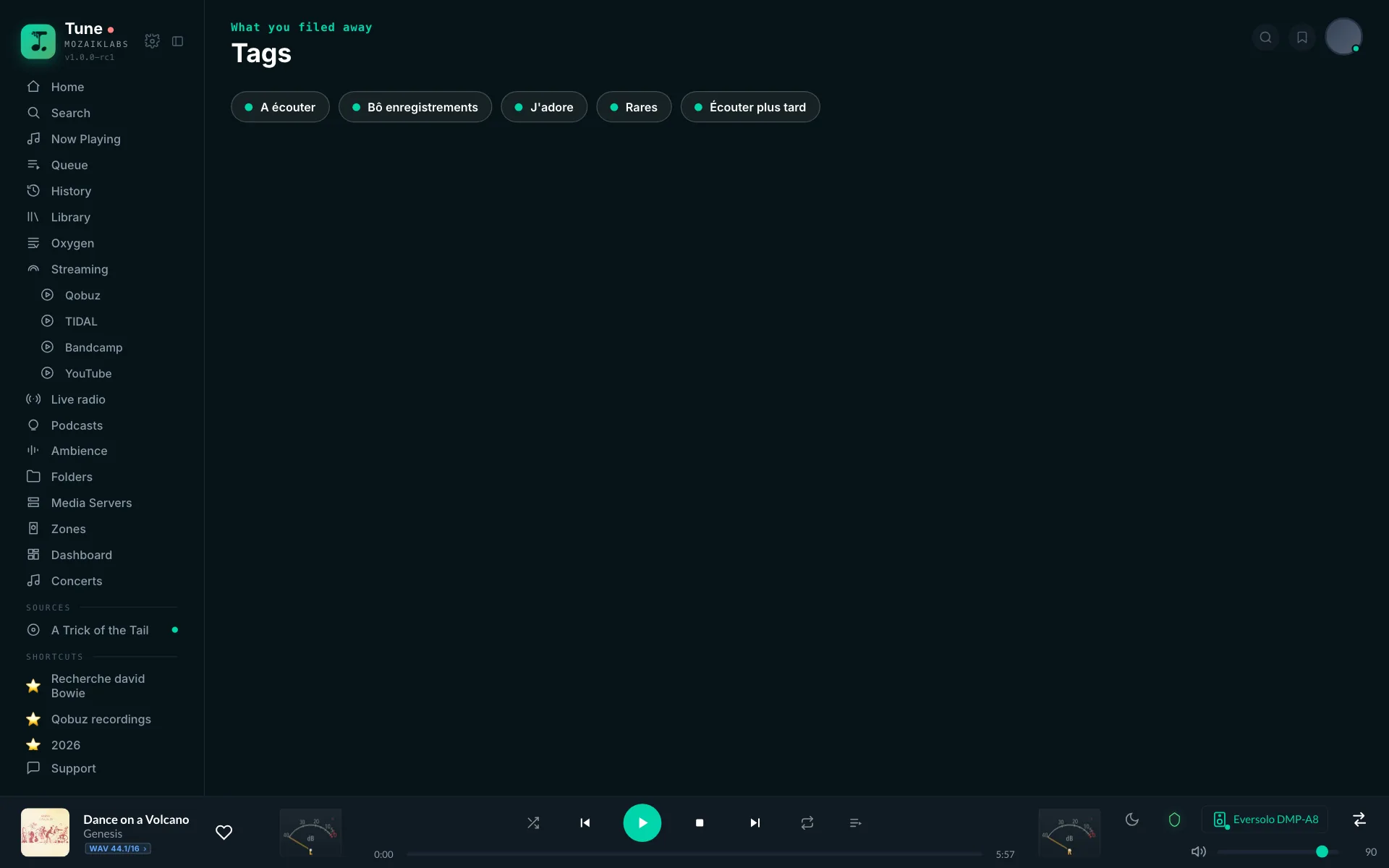
Tags
Your own tags, put on albums, tracks or playlists from their menu. A click on a tag shows everything you filed under it.
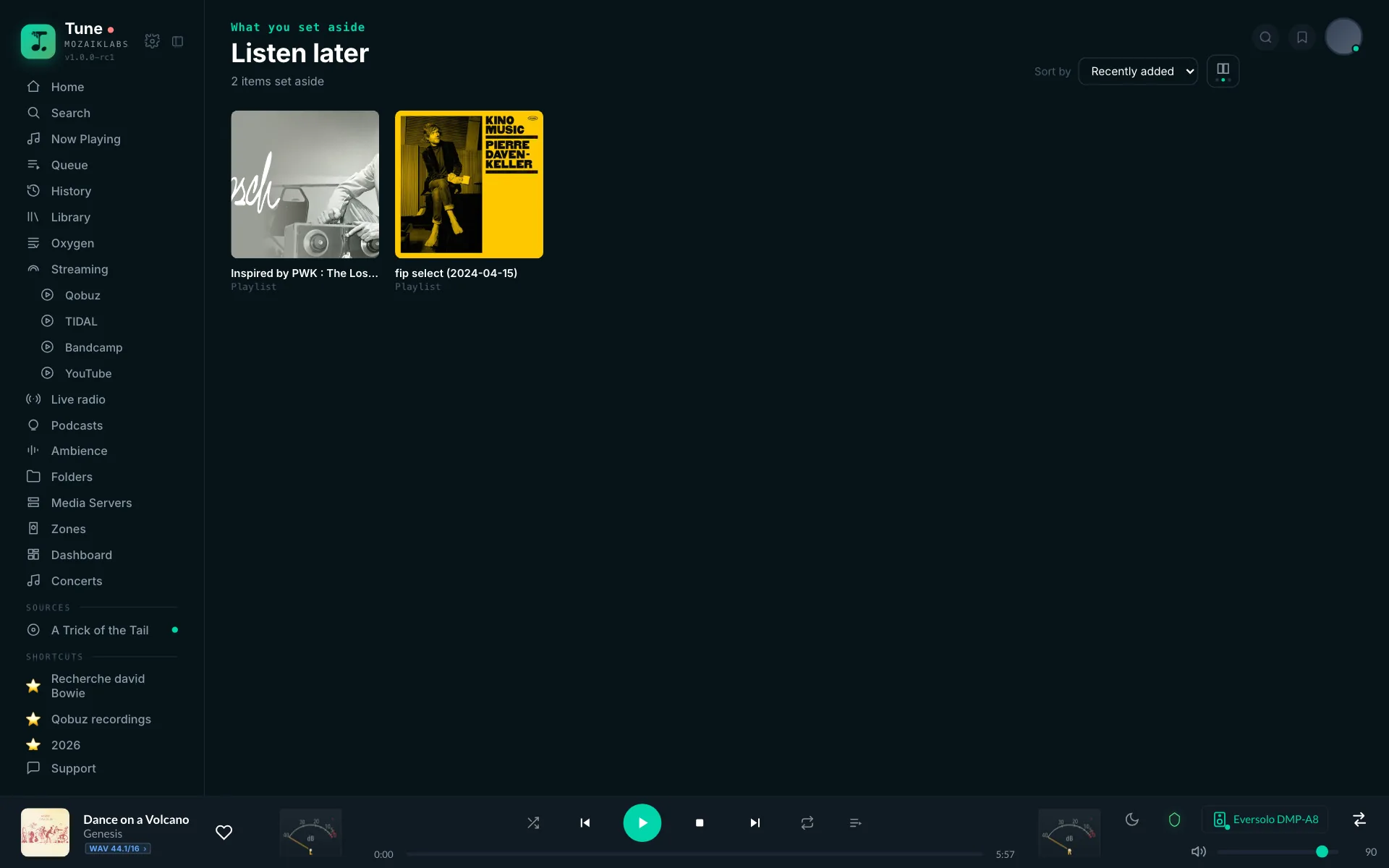
Listen later
Set aside an album, a track or a playlist from its “…” menu to come back to it later.
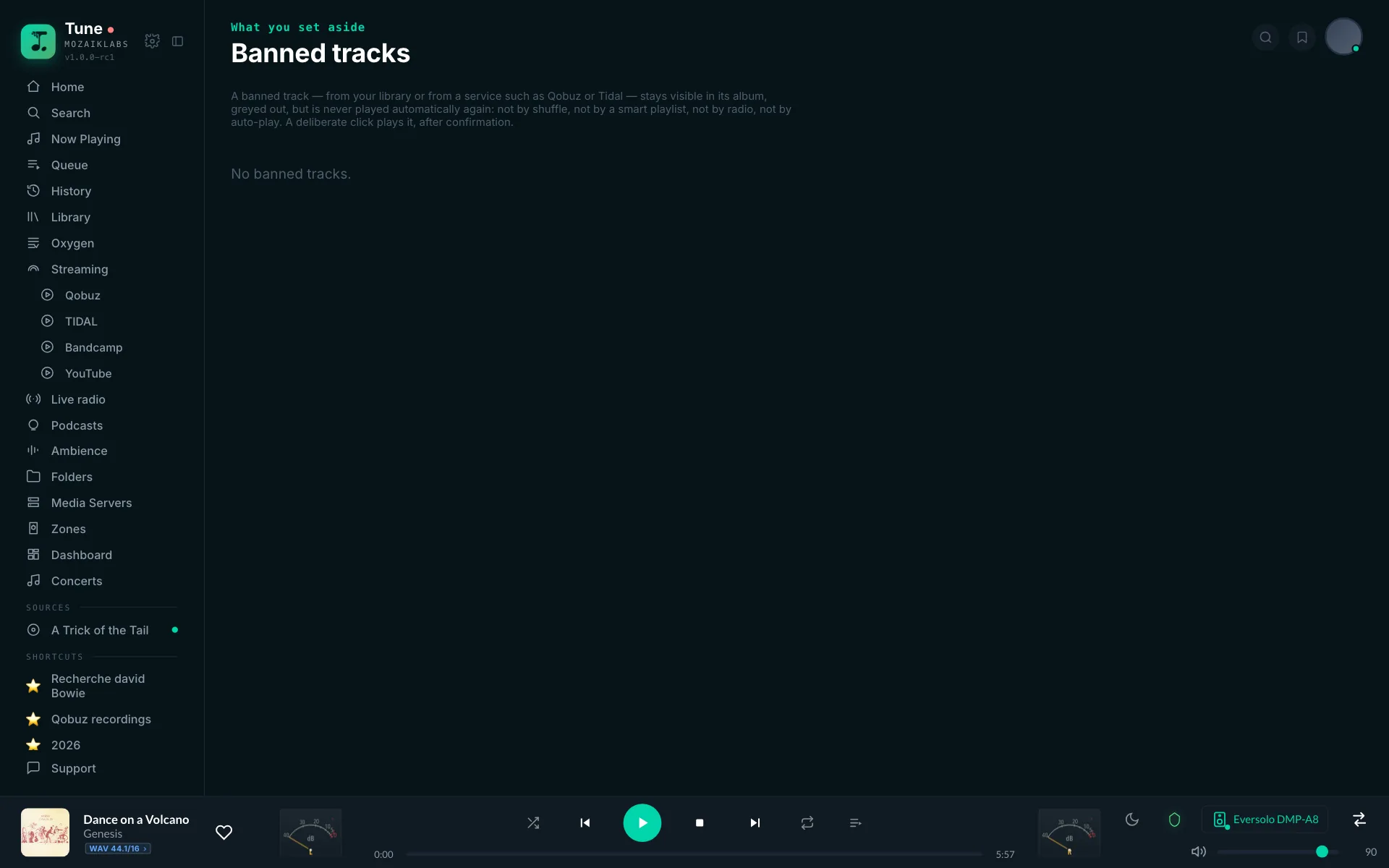
Banned tracks
A banned track — from your library or a service such as Qobuz or Tidal — stays visible in its album, greyed out, but is never played automatically again: not in shuffle, not by a smart playlist, not by radio, not in gapless sequence. This screen lists them all, to review or unban them.
Shortcuts
Pin any screen — a search, a playlist, a selection — to come back to it in one click. The sidebar shows five of them, pinned ones first.
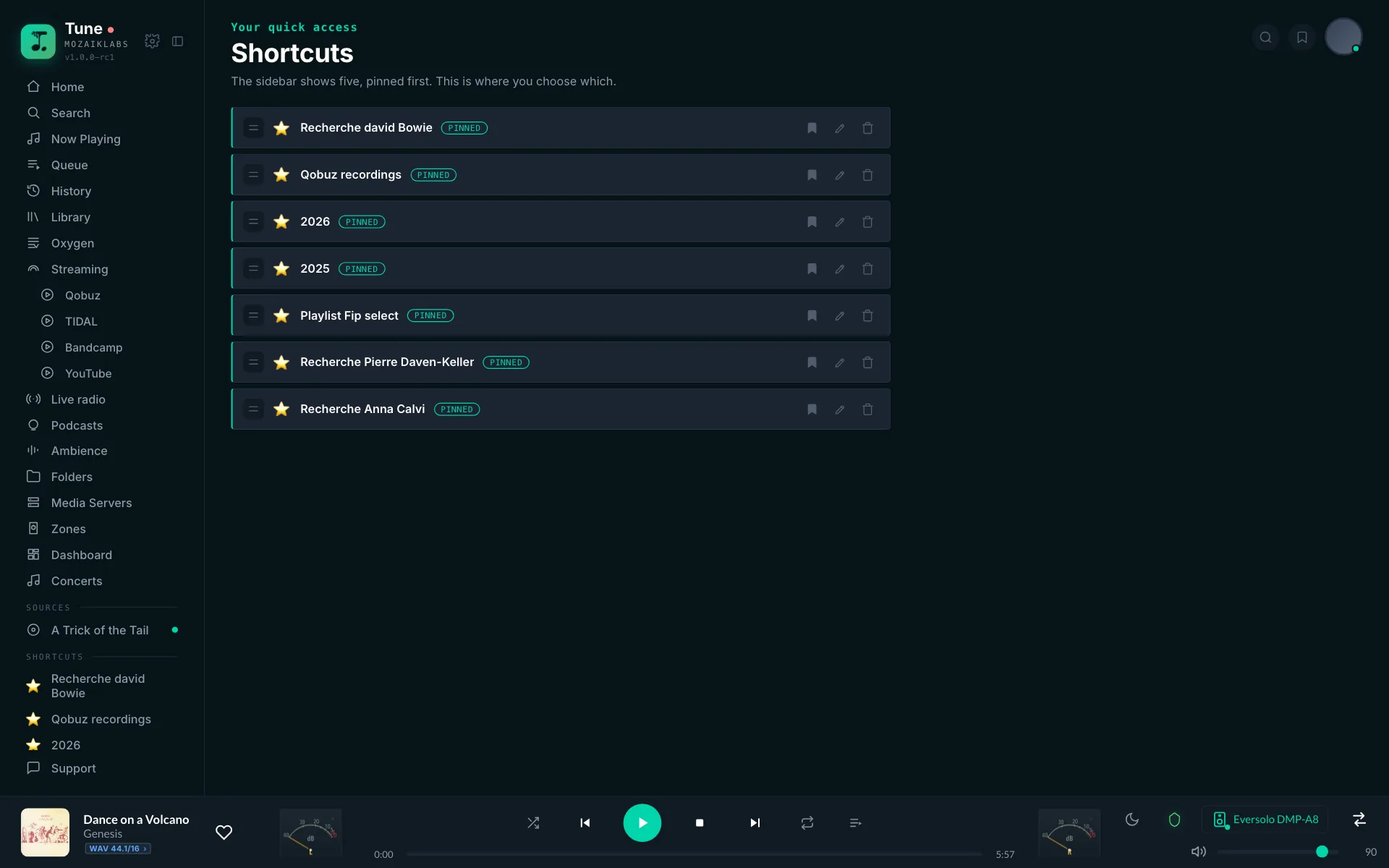
- 1
Shortcut
A click reopens the saved screen.
- 2
Sidebar, edit, delete
Choose which shortcuts the sidebar shows, rename them or delete them.
- 3
Create a shortcut
From any screen, the bookmark at the top right adds it to your shortcuts.
Sources & streaming
Services, radio, podcasts, media servers and concerts.
Streaming services
Your connected services — here Qobuz, Tidal, Bandcamp and YouTube — in a single screen: the service’s editorial picks, playlists, favourites and genres, with a search in its catalogue.
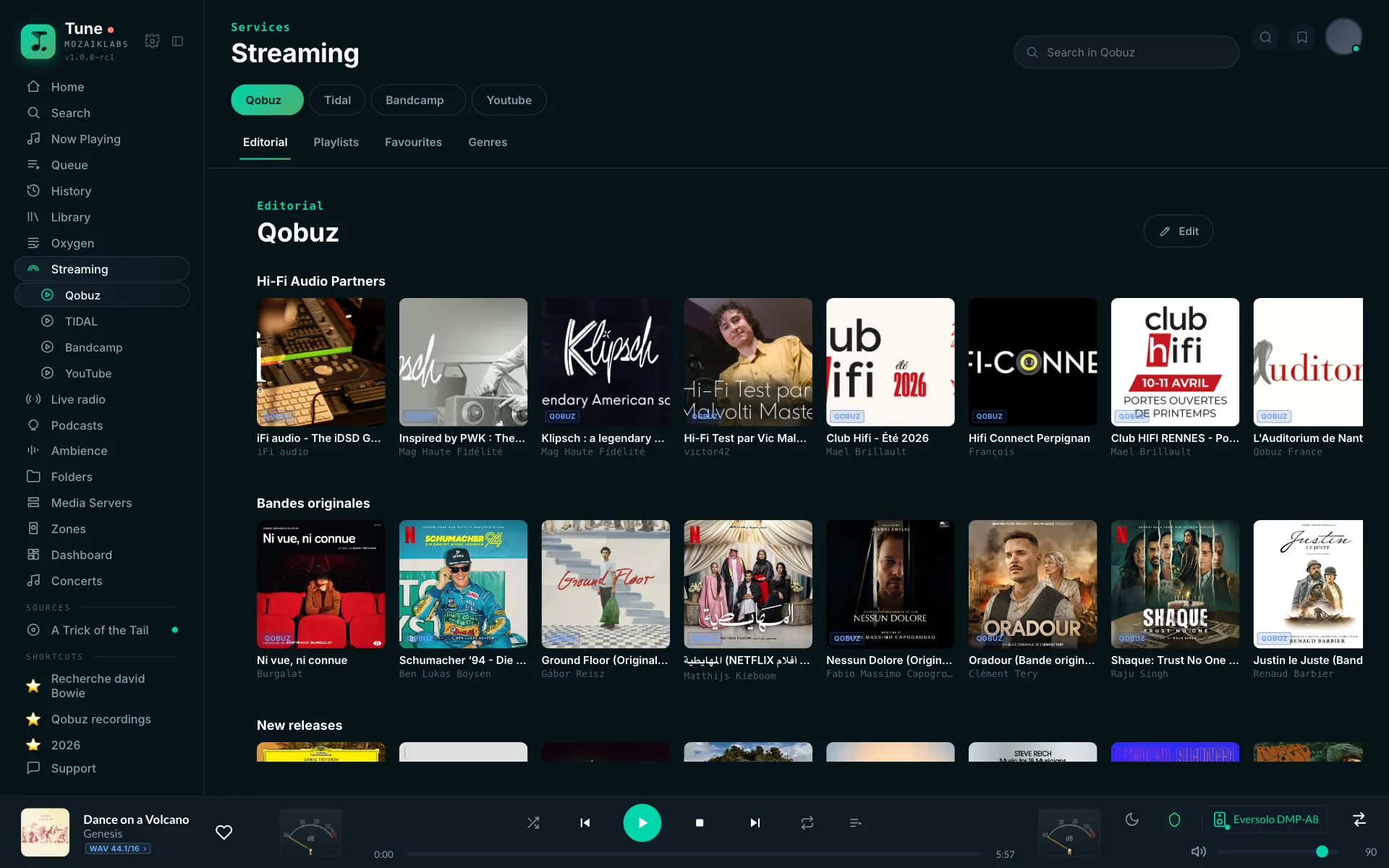
- 1
Services
Switch from one connected service to another.
- 2
Sections
Editorial, Playlists, Favourites, Genres.
- 3
Search in the service
Search the service’s catalogue directly.
- 4
Editorial picks
The rows offered by the service.
- 5
In the sidebar
Each connected service has its own entry under “Streaming”.
- 6
Edit
Choose and order the rows shown.
Radio & podcasts
Your web radios, sorted by genre, with favorites and direct playback; and podcasts, to discover or follow by subscription.
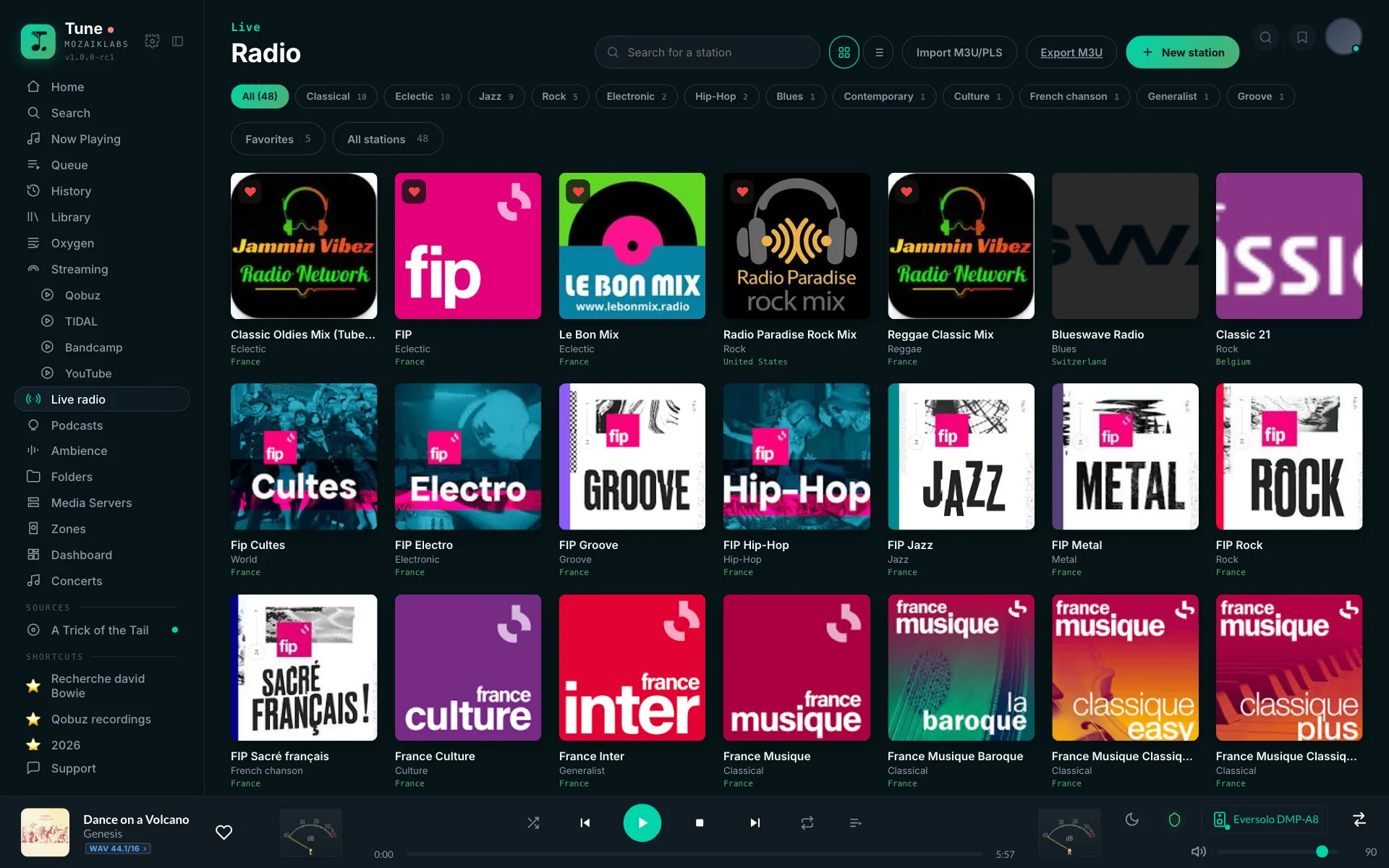
Live radio: genres, favorites, M3U import and export.
- 1
Genres
Classical, Eclectic, Jazz, Rock… with the number of stations.
- 2
Favorites
Your favorite stations, or all stations.
- 3
Search for a station
Find a station by name.
- 4
Import / export
Import M3U/PLS, Export M3U.
- 5
New station
Add a station from its address.
- 6
Station
Hover to listen; the heart adds it to favorites.
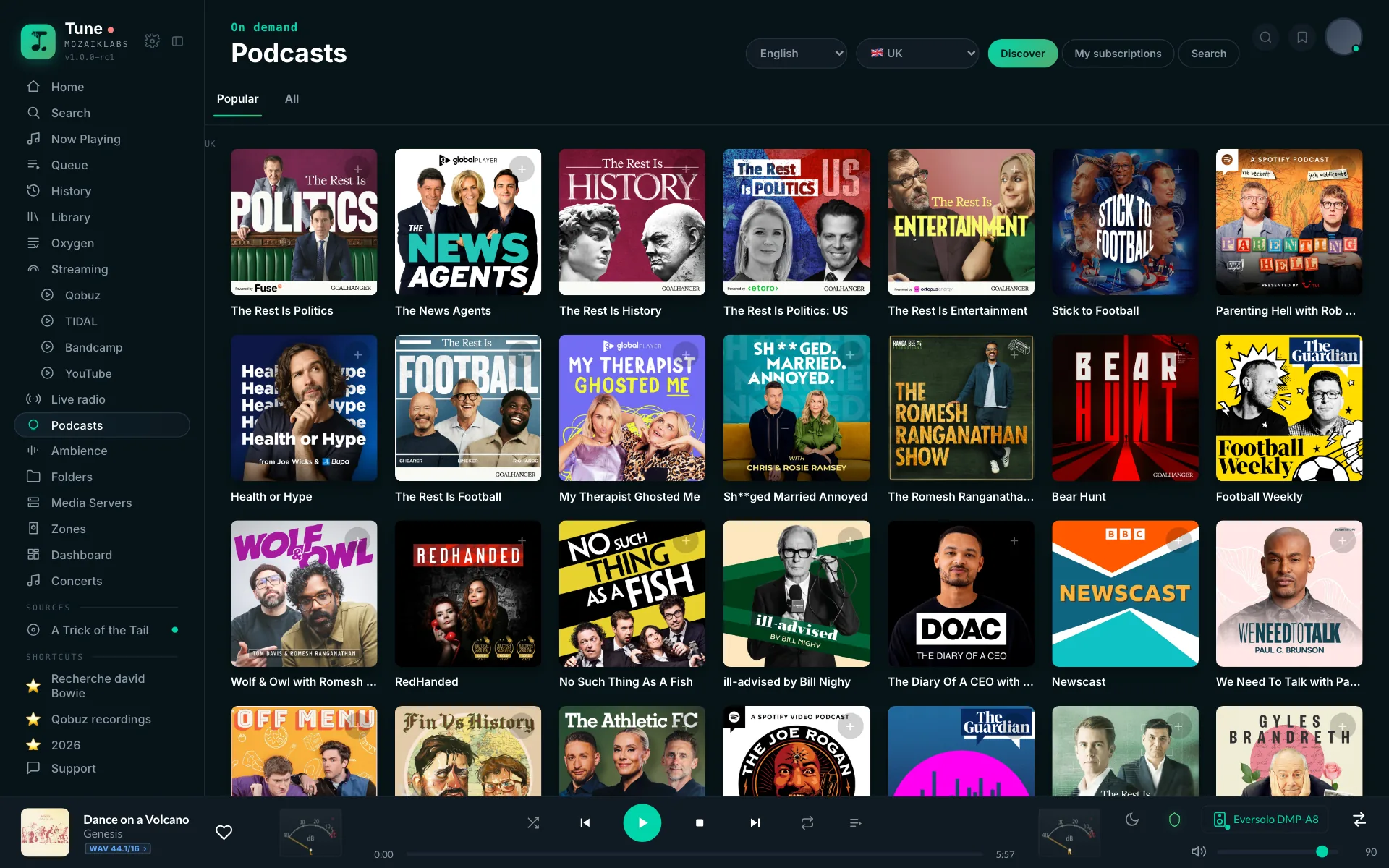
Podcasts: discovery by country and language, subscriptions and search.
- 1
Discover, My subscriptions, Search
The three ways into podcasts.
- 2
Language and country
Tailor the suggestions.
- 3
Selection, Popular
Browse the suggested podcasts.
- 4
Subscribe
Follow a podcast to get its new episodes.
Media servers & folders
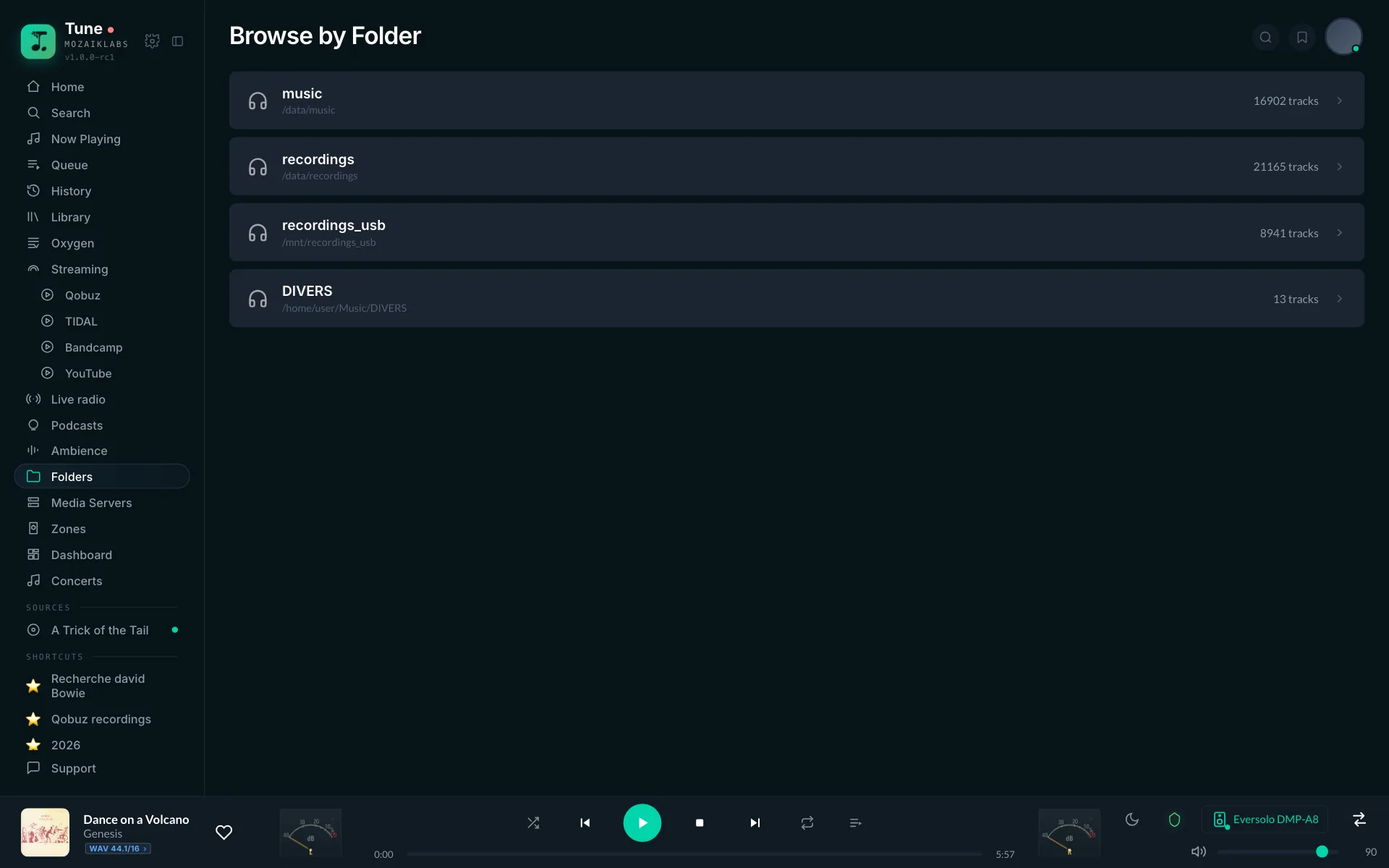
Tune detects the media servers (UPnP/DLNA) on your network and lets you browse their folders. Add a folder to the library: it is synced automatically, and the files stay on the original server. Folders browses your own music folders.
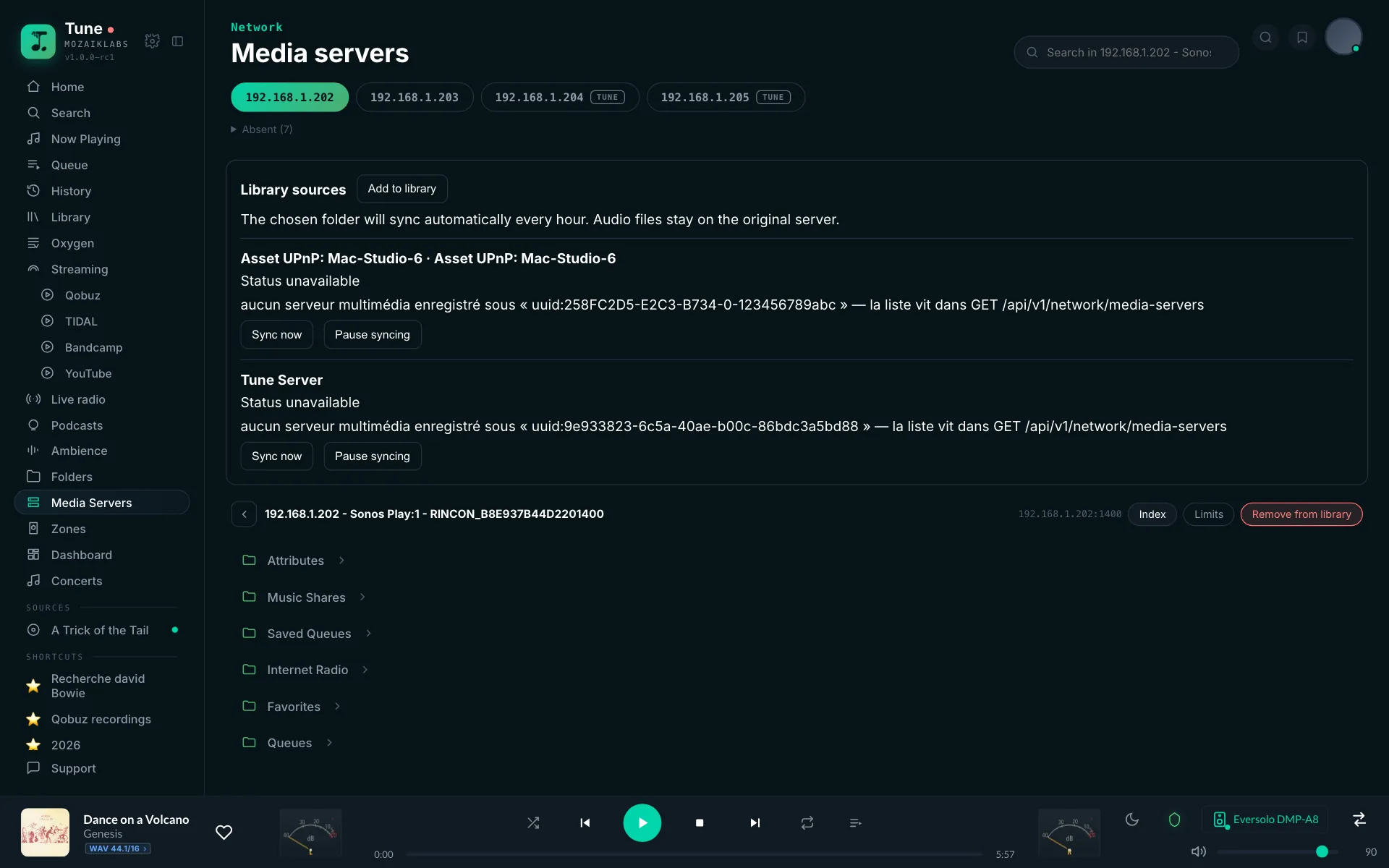
- 1
Detected servers
The servers seen on the network; those no longer answering are grouped apart.
- 2
Add to library
The chosen folder is synced automatically every hour.
- 3
Sync
Sync now or pause syncing.
- 4
Browse
Navigate the server’s folder tree.
- 5
Index
Index the folder, set its limits or remove it from the library.
Concerts
The artists in your library, on tour: Tune lists their upcoming concerts around you, in your country or everywhere, with a link to the ticket office. An extension to switch on in Settings.
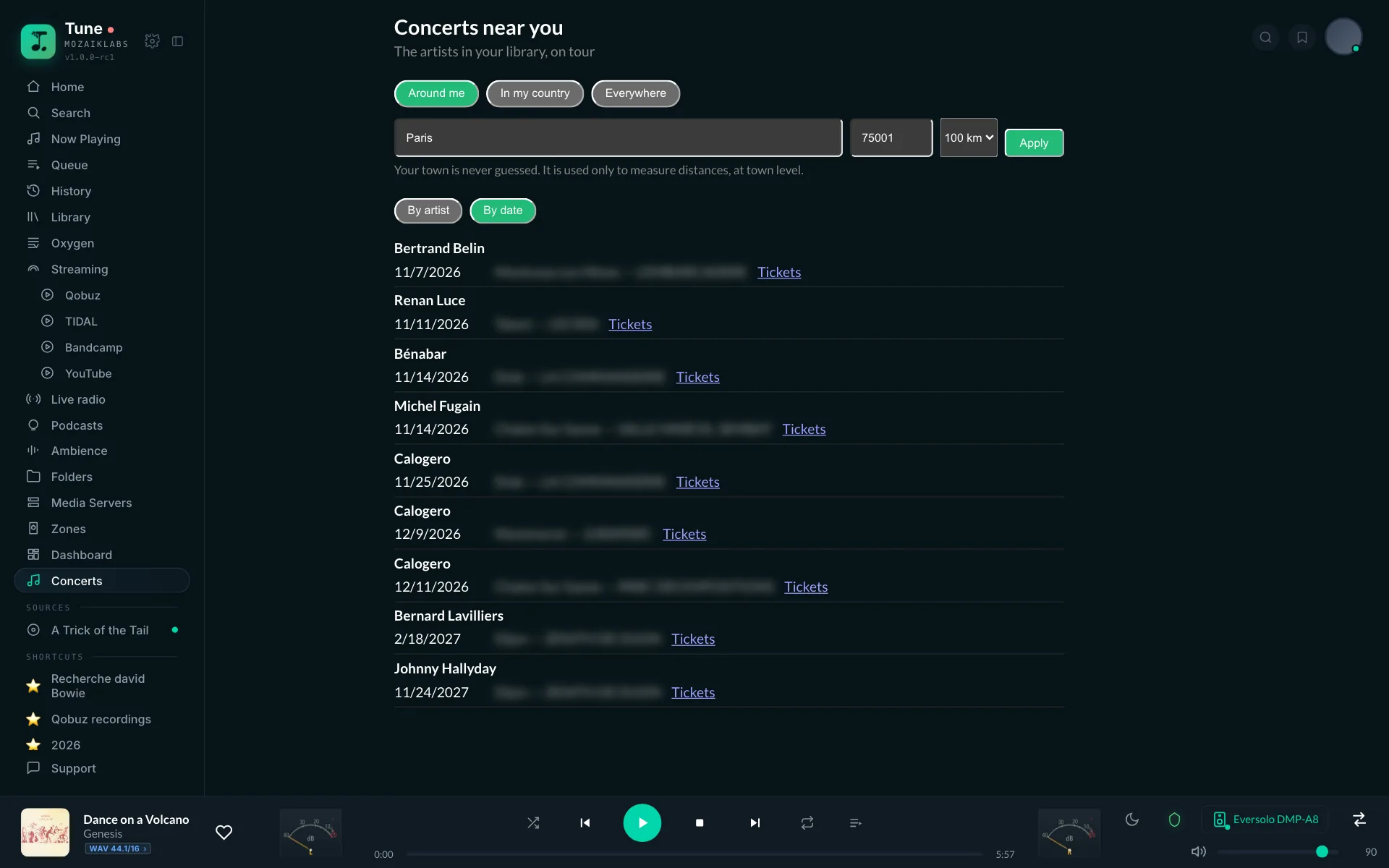
- 1
Area
Around me, In my country, Everywhere.
- 2
Town and radius
Enter your town, postcode and a radius. It is only used to measure distances.
- 3
By artist, by date
Two ways to sort the list.
- 4
Tickets
The link to the concert’s ticket office.
Sound quality
Bit-perfect, DSD and headphone crossfeed.
Crossfeed Pro
Advanced crossfeed for headphone listening: amount, delay, head shadow, low cut, phase guard and named profiles, zone by zone. A premium extension.
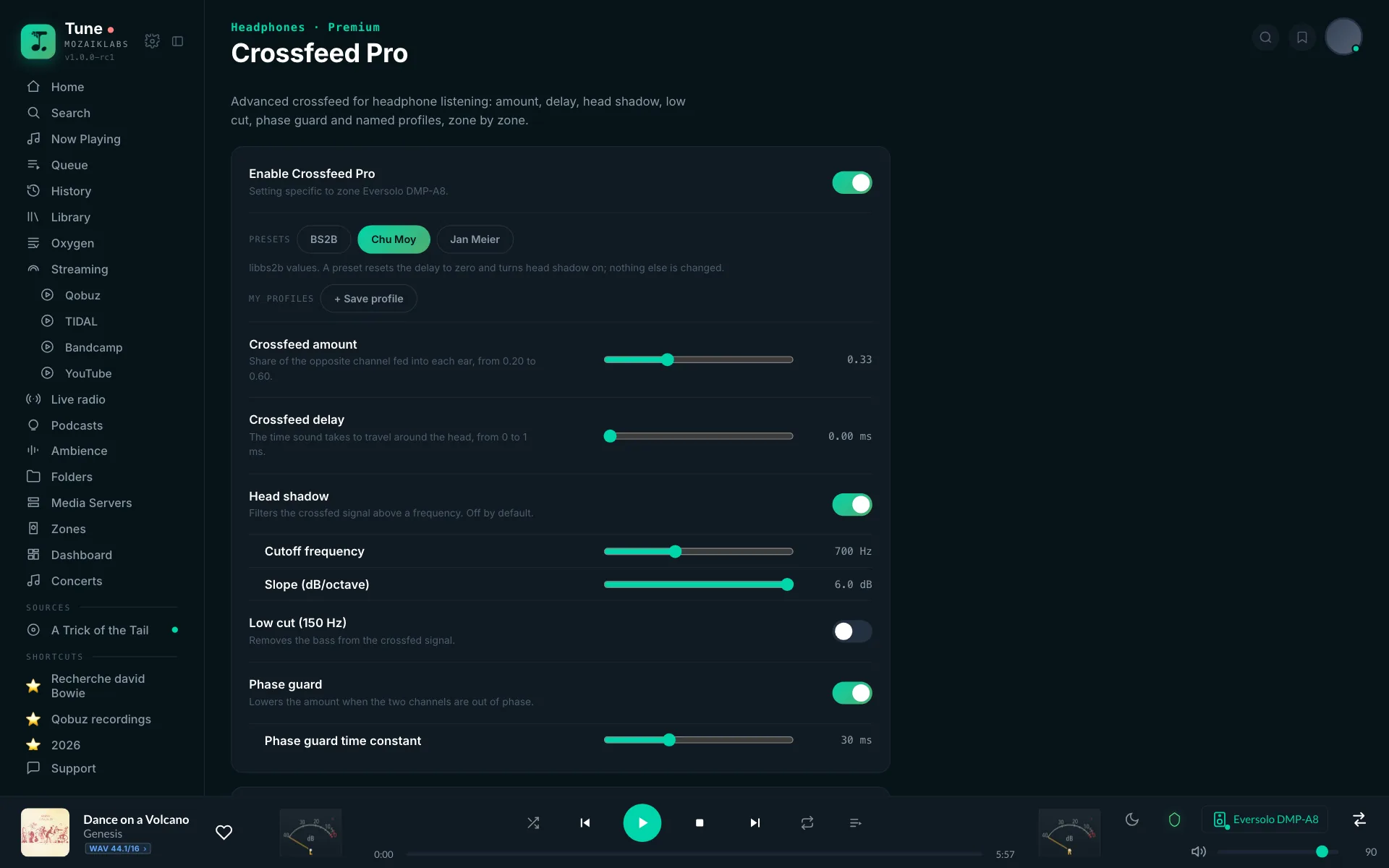
- 1
Enable Crossfeed Pro
The setting belongs to the chosen zone.
- 2
Presets
BS2B, Chu Moy, Jan Meier.
- 3
My profiles
Save your own settings under a name.
- 4
Fine settings
Crossfeed amount and delay, head shadow, cutoff frequency, slope, low cut, phase guard.
Does Tune keep playback bit-perfect?
Yes. As long as no processing is active on the zone, the stream is passed through untouched; the Now Playing screen then shows “Bit-Perfect”. Crossfeed does change the signal, which is why it is set zone by zone.
Is DSD supported?
Yes: the library identifies it (Quality filter), and it is sent natively or as DoP depending on what the device accepts.
Manage & maintain
Metadata, dashboard, settings, extensions and server status.
Metadata
The metadata centre: enrichment proposals, doubtful albums, duplicates, genre tree, dynamic range, compilations, box sets and missing albums.
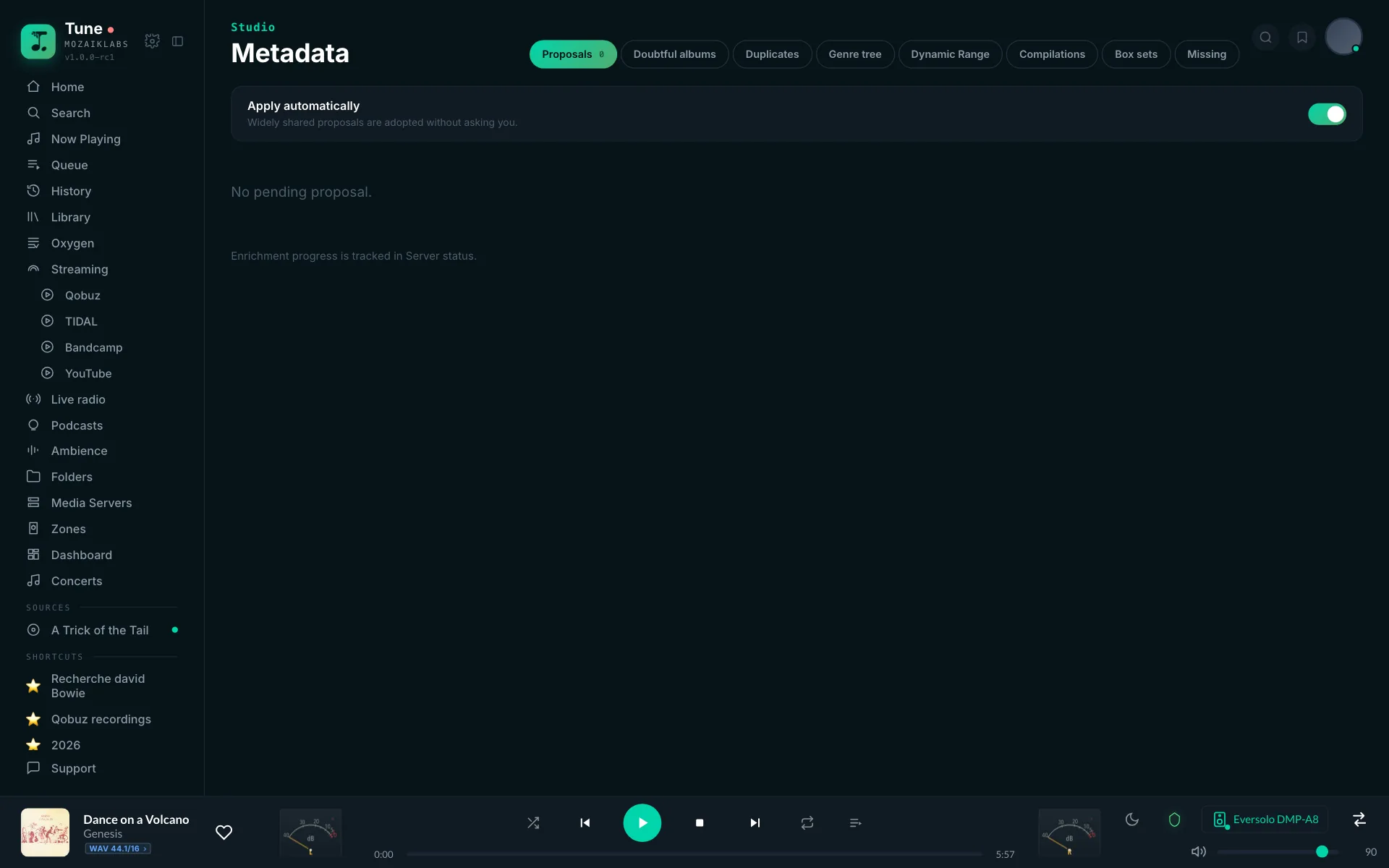
- 1
Proposals
Suggested corrections for your albums, to accept or not.
- 2
Other tabs
Doubtful albums, Duplicates, Genre tree, Dynamic Range, Compilations, Box sets, Missing.
- 3
Apply automatically
Widely shared proposals are adopted without asking you.
Dashboard
My listening: your statistics as widgets — trend, listening hours across the week, top albums… — that you pick and arrange yourself.
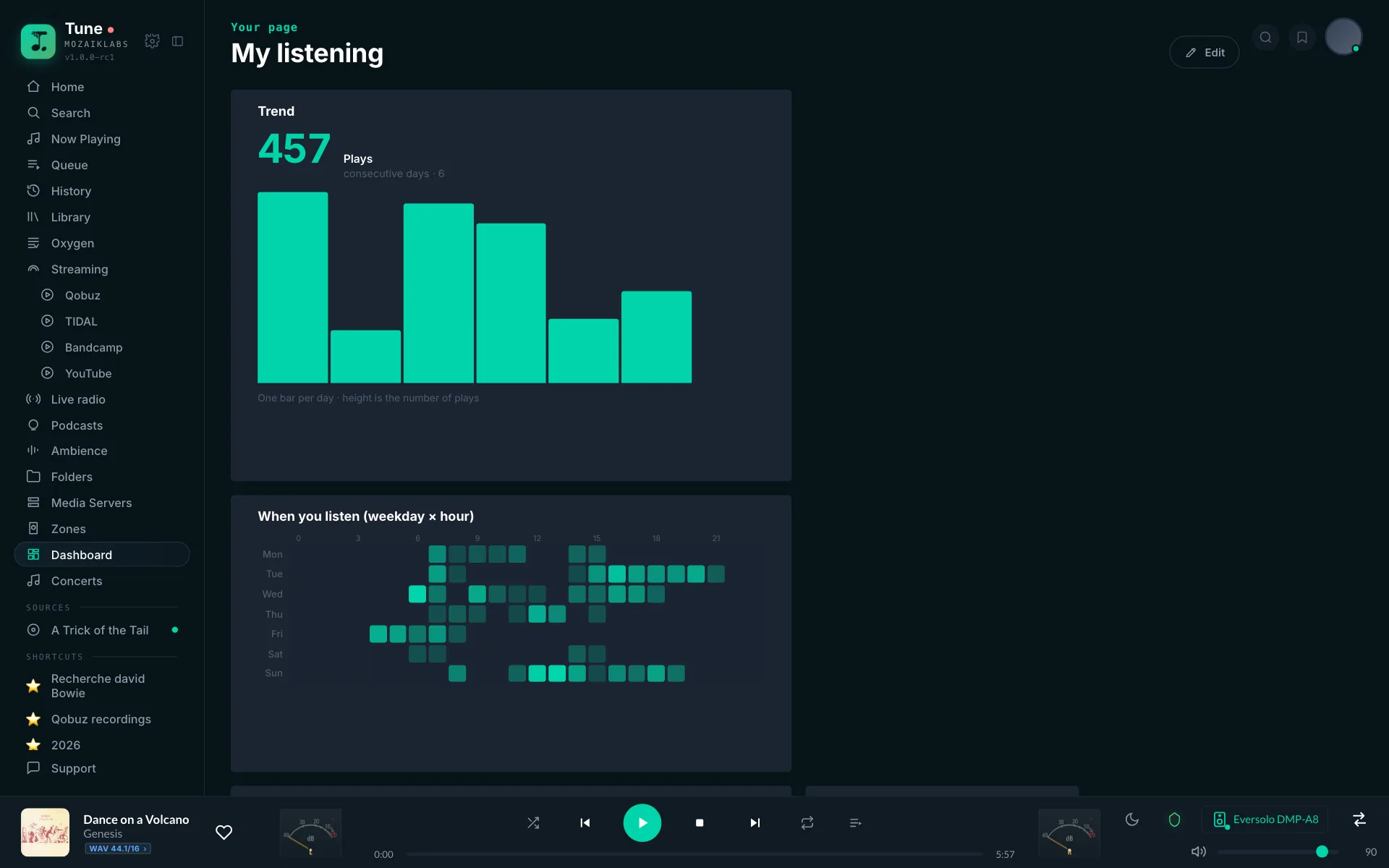
- 1
Edit
Add, remove or reorder the widgets.
- 2
Trend
Your plays, day by day.
- 3
When you listen
A weekday × hour grid of your listening.
Settings
All settings, sorted by tab: General, Audio, Library, Zones, Devices, Display, Extensions, Access and tokens, System, Acoustic analysis and Tune Premium License.
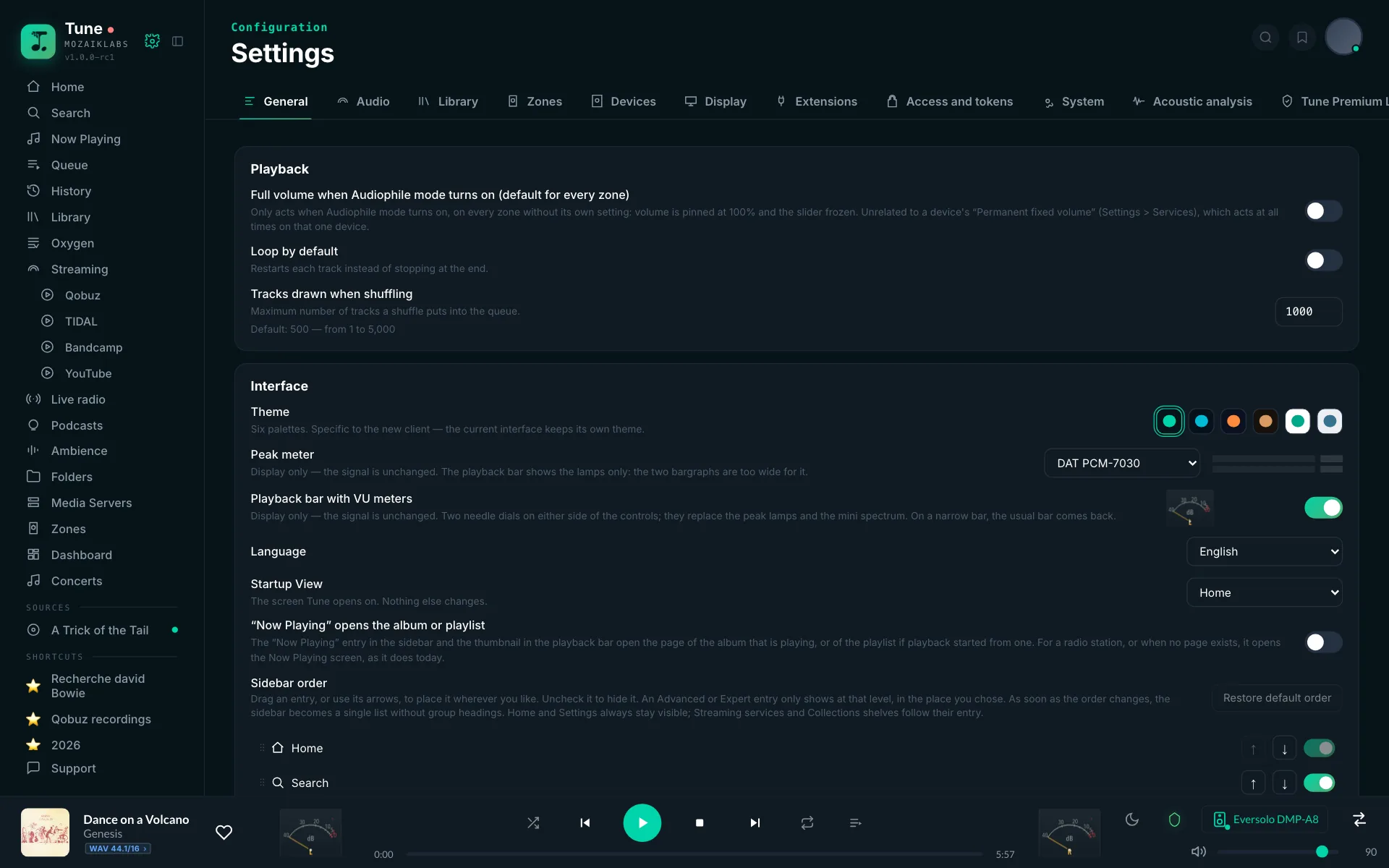
- 1
Tabs
Each family of settings has its own tab.
- 2
Theme
Six palettes: Noir / Vert (default), Noir / Bleu, Minuit / Orange, Brun, Clair / Blanc, Clair / Gris.
- 3
Peak meter
The look of the level meters. Display only: the signal does not change.
- 4
Language
The interface language.
- 5
Startup view
The screen Tune opens on.
- 6
Sidebar order
Reorder or hide the sidebar entries.
Extensions
Extensions add features to Tune: concerts, CD playback, Bandcamp, crossfeed, converter… Switch them on or off, or install them, from the Extensions tab in Settings.
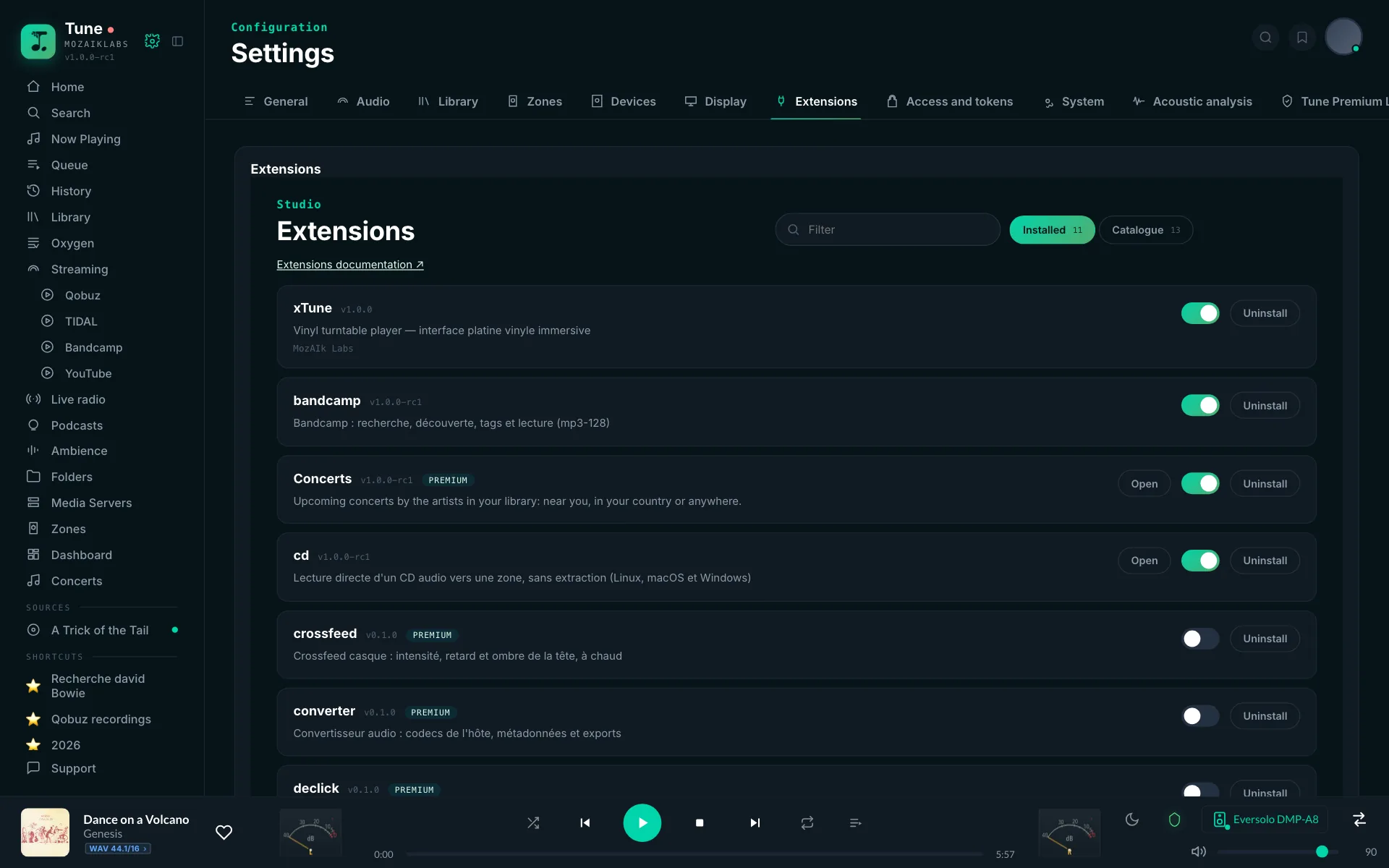
- 1
Extensions tab
In Settings.
- 2
Installed, Catalogue
Your extensions, and those you can add.
- 3
Documentation
The extensions documentation.
- 4
Switch on or off
Each extension turns on and off in one gesture; “Open” leads to its screen.
Server status
What the server is doing, live: library scan, acoustic analysis, ReplayGain, dynamic range, metadata enrichment, artist pictures, CPU temperature and network diagnostics.
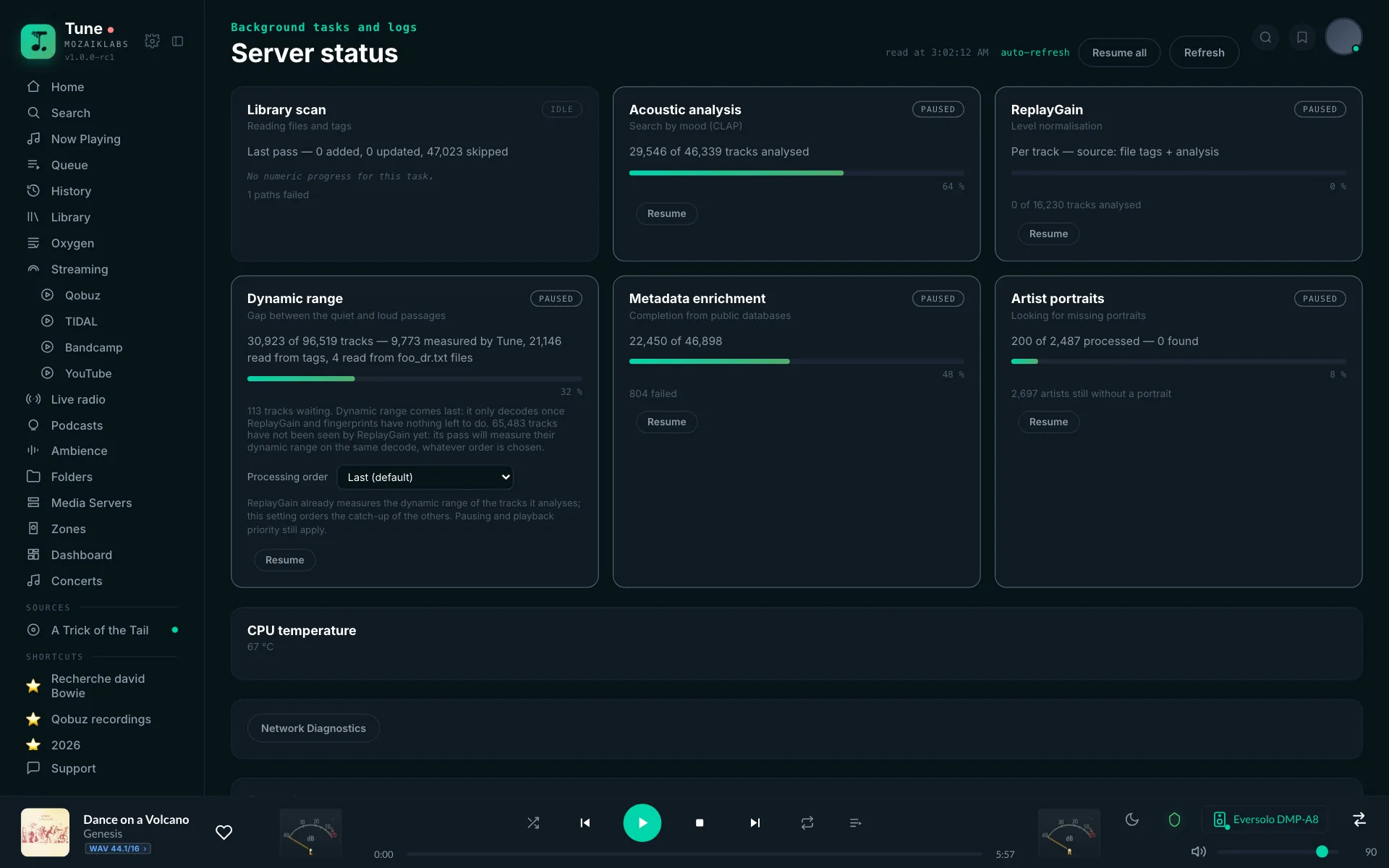
- 1
Library scan
Reading files and tags, and the result of the last pass.
- 2
Acoustic analysis
The analysis used by Ambience, with its progress.
- 3
ReplayGain
Loudness normalisation, track by track.
- 4
Dynamic range
The gap between soft and loud passages, measured for each track.
- 5
Resume
Every paused task can be resumed.
- 6
Resume all, Refresh
For all tasks at once.
- 7
Network diagnostics
Checks the server’s connection.
Puzzled by a term (DR, DoP, bit-perfect…)? See the glossary.
Ready to listen?
Install Tune and bring all your music — local and streaming — into one interface, on every device.
Download Tune